| src | ||
| .gitignore | ||
| clipboard-flow.gif | ||
| data.json | ||
| main.js | ||
| manifest.json | ||
| package-lock 2.json | ||
| package.json | ||
| README.md | ||
| rollup.config.js | ||
| styles.css | ||
| tsconfig.json | ||
| yarn.lock | ||


Extract Highlights Plugin
Extracts all highlights from a current note in Obsidian into your clipboard. Based on icebear's plugin request.
Are you using Extract Highlights? I'd love to hear from you!
Share your questions and suggestions in the forum
How it works
This plugin will copy the highlights delimited by ==, ** and <mark></mark> into your clipboard as a bullet-list.
Optionally you can...
- Customize the heading text of the list, include the note-title or hide it all-together
- Customize the highlights by adding footnotes to each that link back to the source-file
Demo
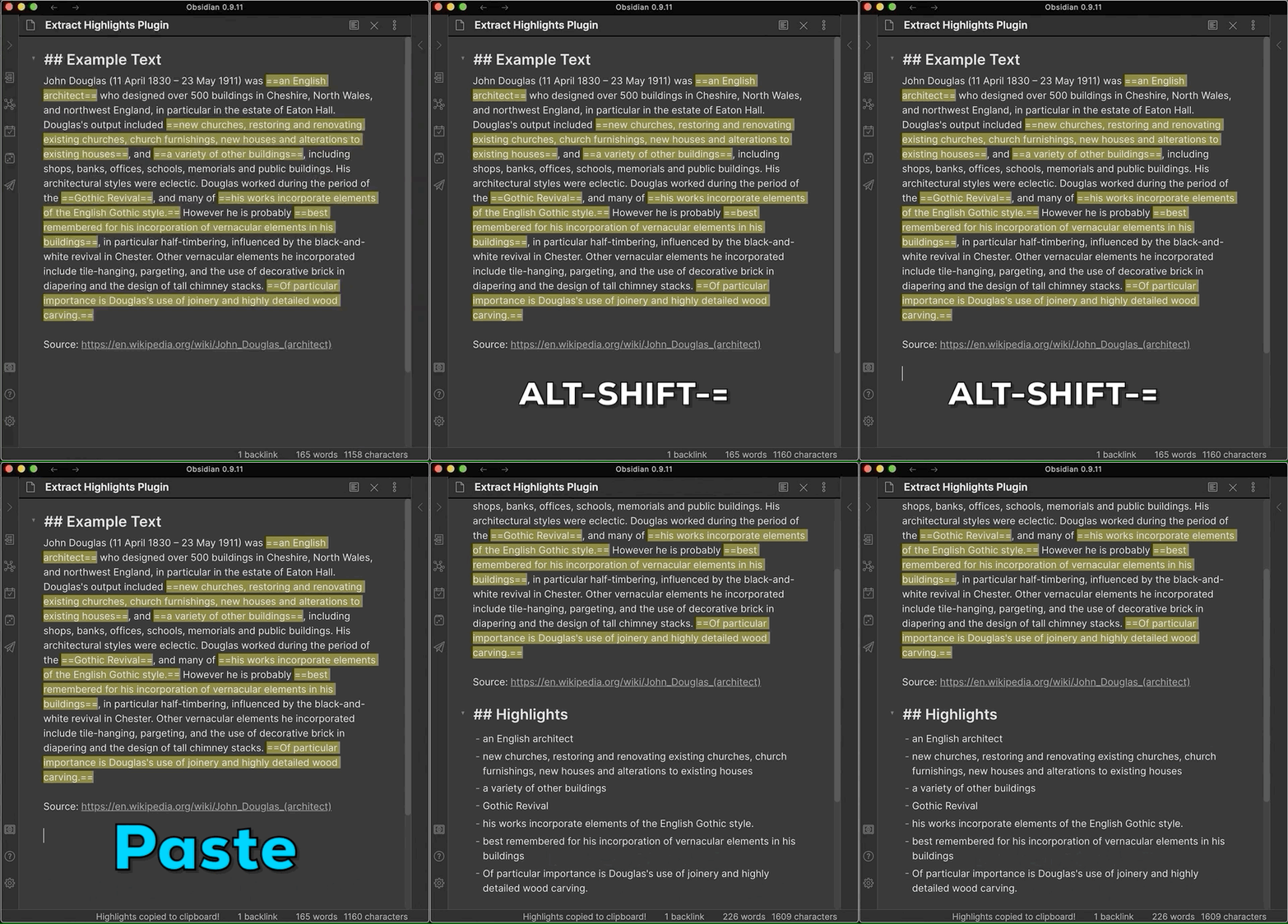
Using the Hotkey
The default hotkey is:
SHIFT + ALT + =
Using the Ribbon Button
There is also a button (a circle-shape) that's added to your left-side ribbon.
Clicking on it will also extract all highlighted parts in your current note and place it in your clipboard.
Using the Command Palette
I looked into it and there’s a bug the way clipboard works with the Command Palette. Basically everything but the “Paste” works.
But I’ve found a temporary work-around. It’s weird but it works.
- Trigger Command Palette (Command-P)
- Find “Extract Highlights”
- Hit Enter (You should see a notification (“Highlights copied to clipboard!”)
- Workaround: At this point, briefly switch to a different note and back (This materialises the clipboard data for pasting)
- Paste works now the same as with the Hotkey and Button-press
Pasting highlights from your clipboard
After using the hotkey, button or command palette, anywhere you want, just paste the clipboard!
Command + v (MacOS) or the equivalent on Windows/Linux
The output is a markdown-block titled "Highlights" with a bullet-list of the highlights.
Backlog
UI
- command (SHIFT + ALT + =) which then copies all of the highlighted text either into:
- click a button which then copies all of the highlighted text either into:
- allow for
<mark></mark>to be used as highlights - allow for standard bold (
**) to be used as highlights - allow to optionally include or completely exclude
## Highlightsheading - allow to change text in heading
## My Custom Highlights - allow to include note-name in heading such as
## From: $NOTE_TITLE - allow to add footnotes for each highlight and include link to source-note
Outputs
- my clipboard
- the top/botton of the note and selected for a next step,
- a designated area in the note such as {{highlights}}, or
- a new note