| assets | ||
| releases | ||
| src | ||
| .gitignore | ||
| .npmrc | ||
| .scignore | ||
| esbuild.js | ||
| GETTING_STARTED.md | ||
| LICENSE | ||
| manifest.json | ||
| package-lock.json | ||
| package.json | ||
| README.md | ||
| release.js | ||
| smart_env.config.js | ||
| styles.css | ||

Smart Context
Feed large language models better inputs, faster. Smart Context collects, cleans, and copies every note you need in a single click.
Build your Context Engineering workflow with Obsidian.
[!NOTE] Why does context matter? AI only answers as well as the context you provide. Smart Context helps aggregate scattered notes into templated snippets that can be quickly pasted into ChatGPT, so your prompts hit harder, your responses feel clairvoyant, and your flow state stays unbroken.
✔️ Zero-setup: works out-of-the-box 🔐 Local-first and privacy-preserving 🤖 Compatible with any AI workflow ⚔️ Mission-driven, community-supported
Learn the workflows in depth:
- Getting started guide — copy folders, build sets, and grow them with links.
- Builder guide — filter, save, and reopen contexts.
- Clipboard workflows — copy folders, multi-select files, and export in one click.
- Settings reference — adjust templates and output controls.

Quick start flows
- Copy a folder in one click — right click a folder in the file navigator and choose Copy contents to copy every note.
- Build and reuse a context — run Open Selector for New Context, add notes or blocks, then name and reopen the bundle later.
- Export with linked sources — send Smart Connections results to Smart Context, pick a link depth, and copy the full set.
Getting started
- Install Smart Context from Community plugins (or click Install above).
- Run Smart Context: Open Selector for New Context to open the Builder.
- Type to filter notes and press Enter to add them. Press → to select specific blocks when you only need sections of a note.
- Use Copy current to clipboard inside the Builder to export the selection, or name the context so you can reuse it later.
- Open Show named contexts to browse, reopen, or adjust saved bundles.
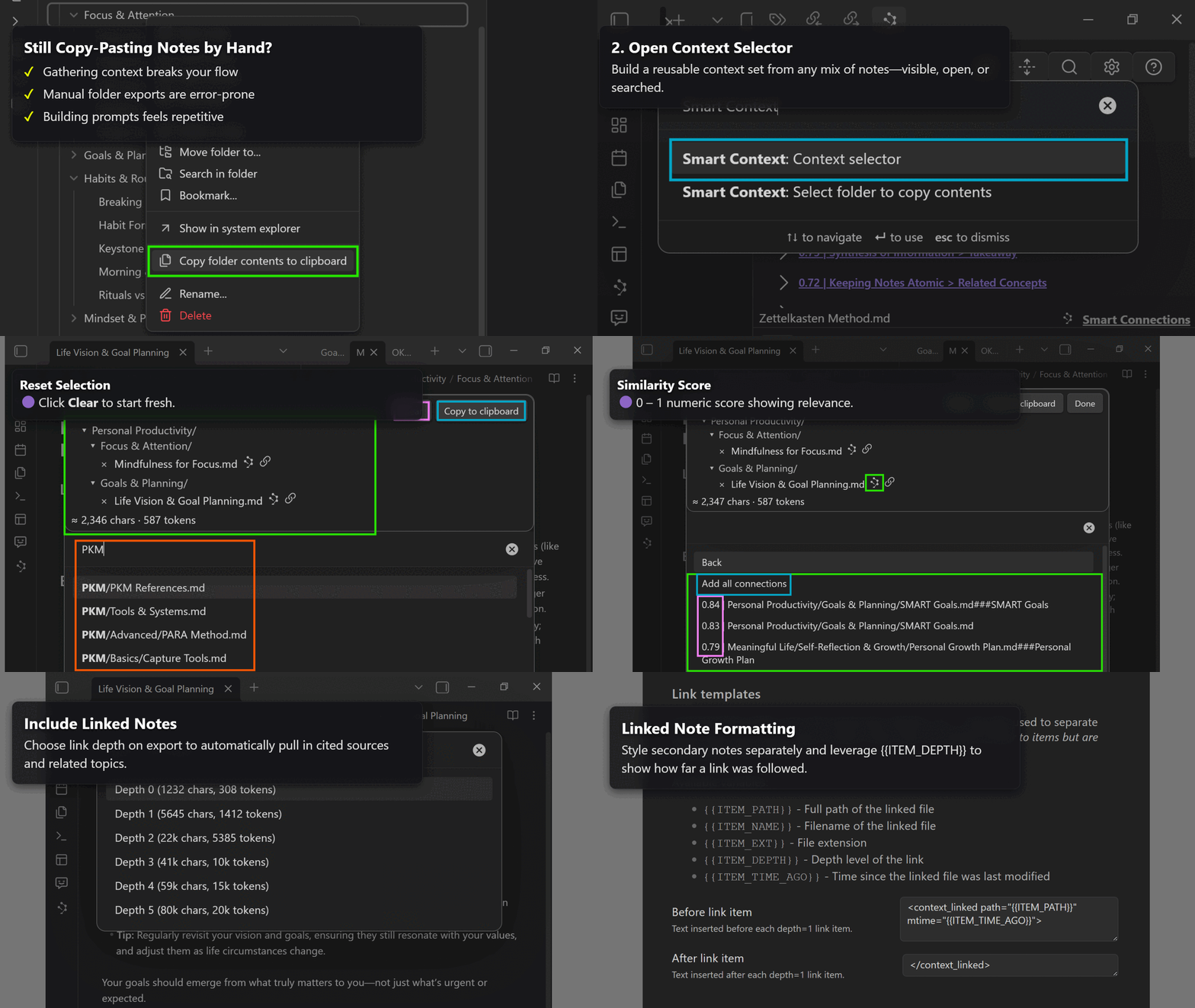
Copy from file navigator
Copy a folder in one click
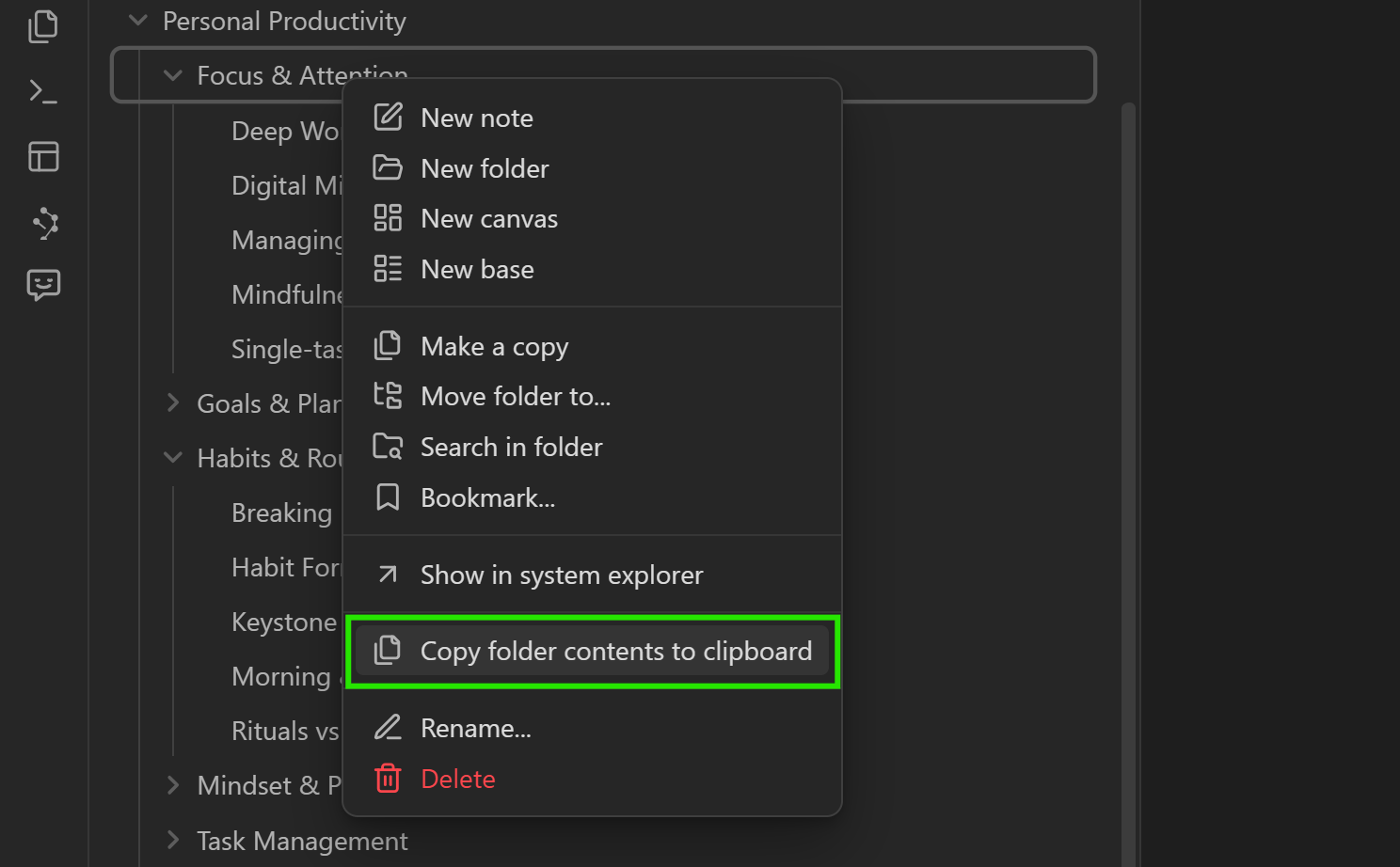
Right click any folder, then choose Copy contents to send every note inside to your clipboard.
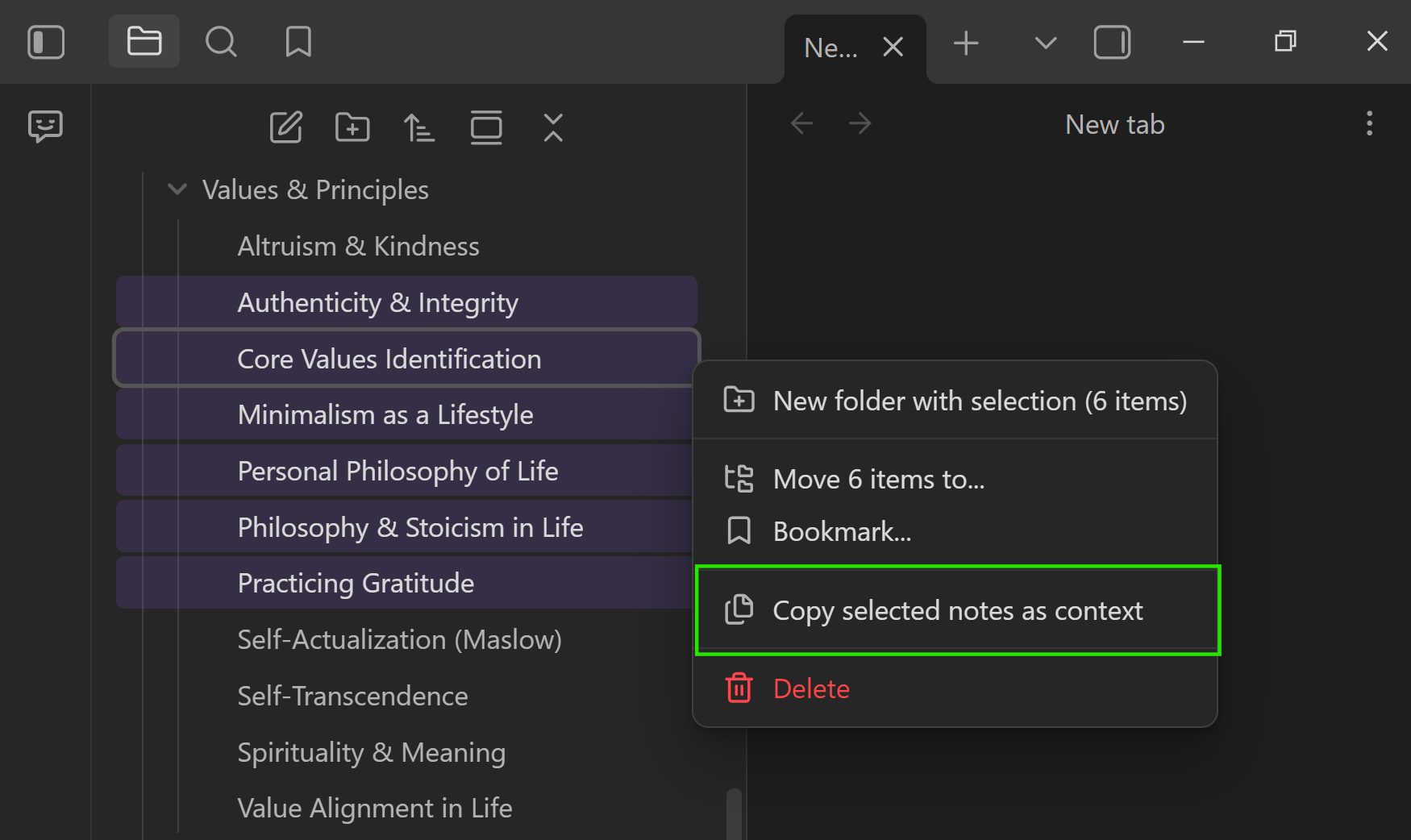
Copy multiple files
Select multiple notes (Shift/Ctrl/Cmd click), then right click and choose Copy selected notes as context to export them using your Context templates.
Copy folder command
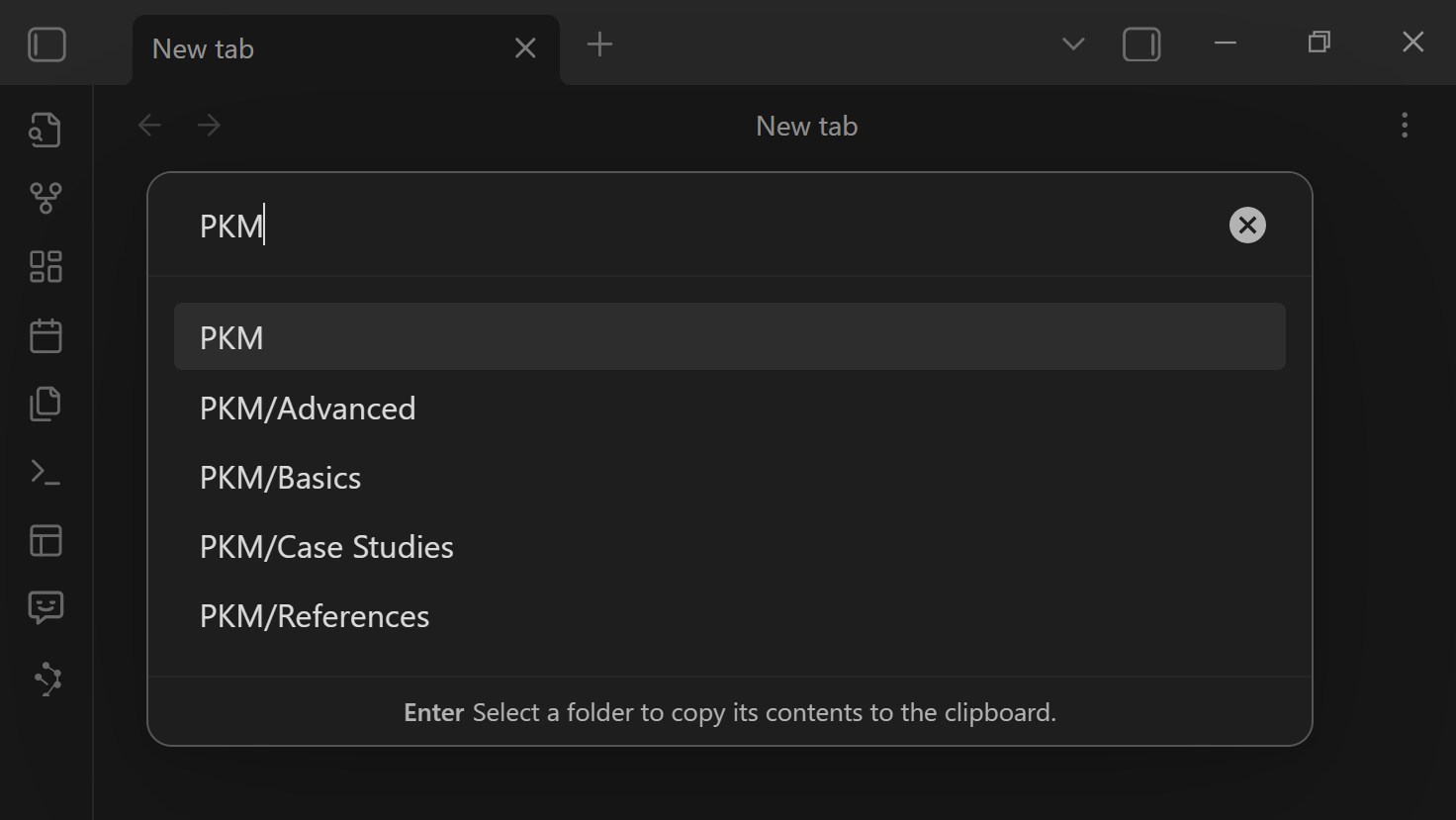
Or run the command Select folder to copy contents from the command palette and assign a hotkey for one-touch export.
Build a custom context with the Builder
- Run Smart Context: Open Selector for New Context to open the Builder modal.
- Type to filter suggestions, press Enter to add notes, and press Right Arrow to switch into block view when you only want a section.
- Remove single items with the x control or use Clear to reset; watch the total size meter to stay within token limits.
- Save a bundle by entering a name, then reopen it via Smart Context: Open Management dashboard (show named contexts) view.
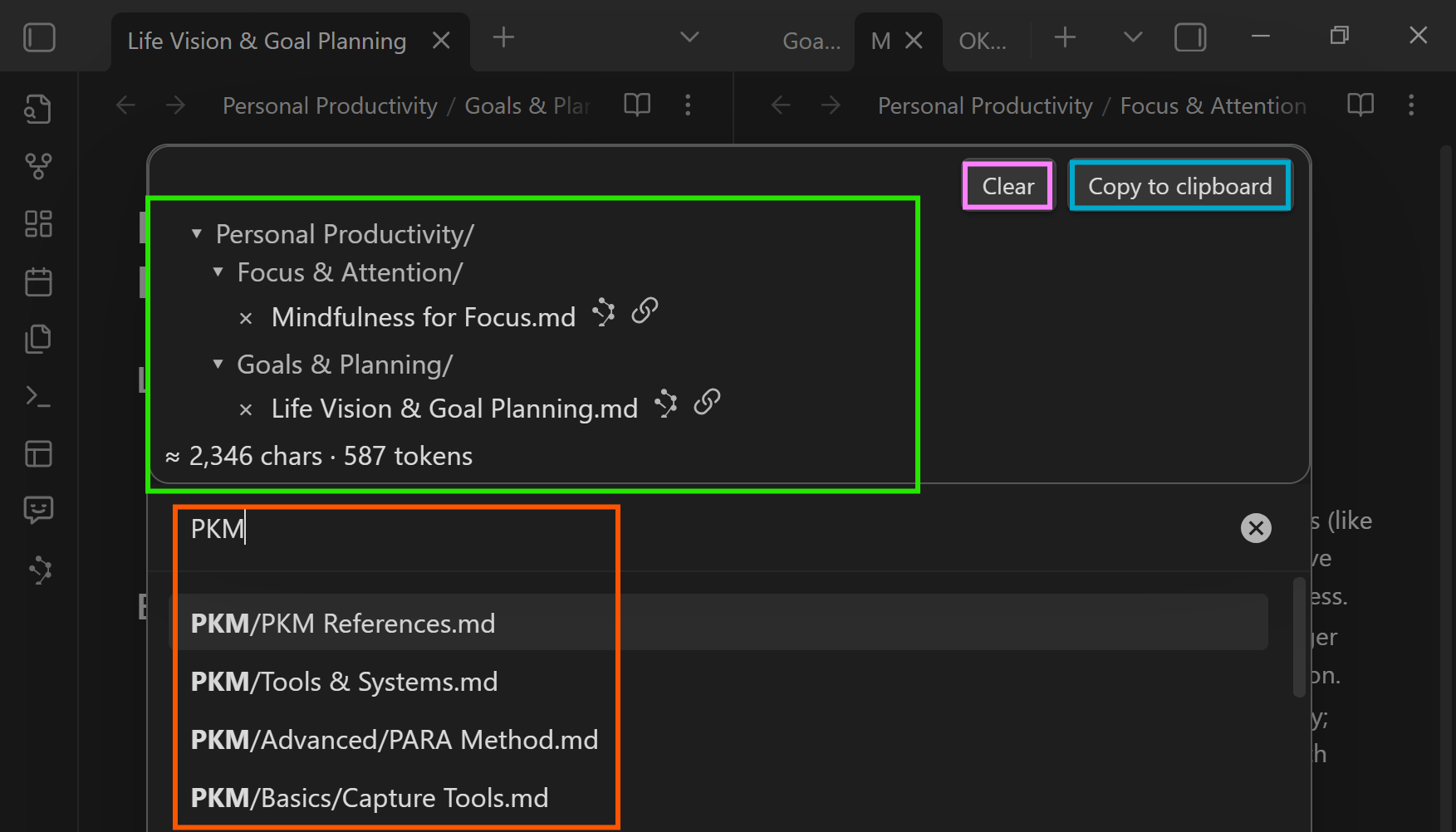
Learn more about the Context Builder in the detailed guide.
Block selection

Grow the set with connections and links
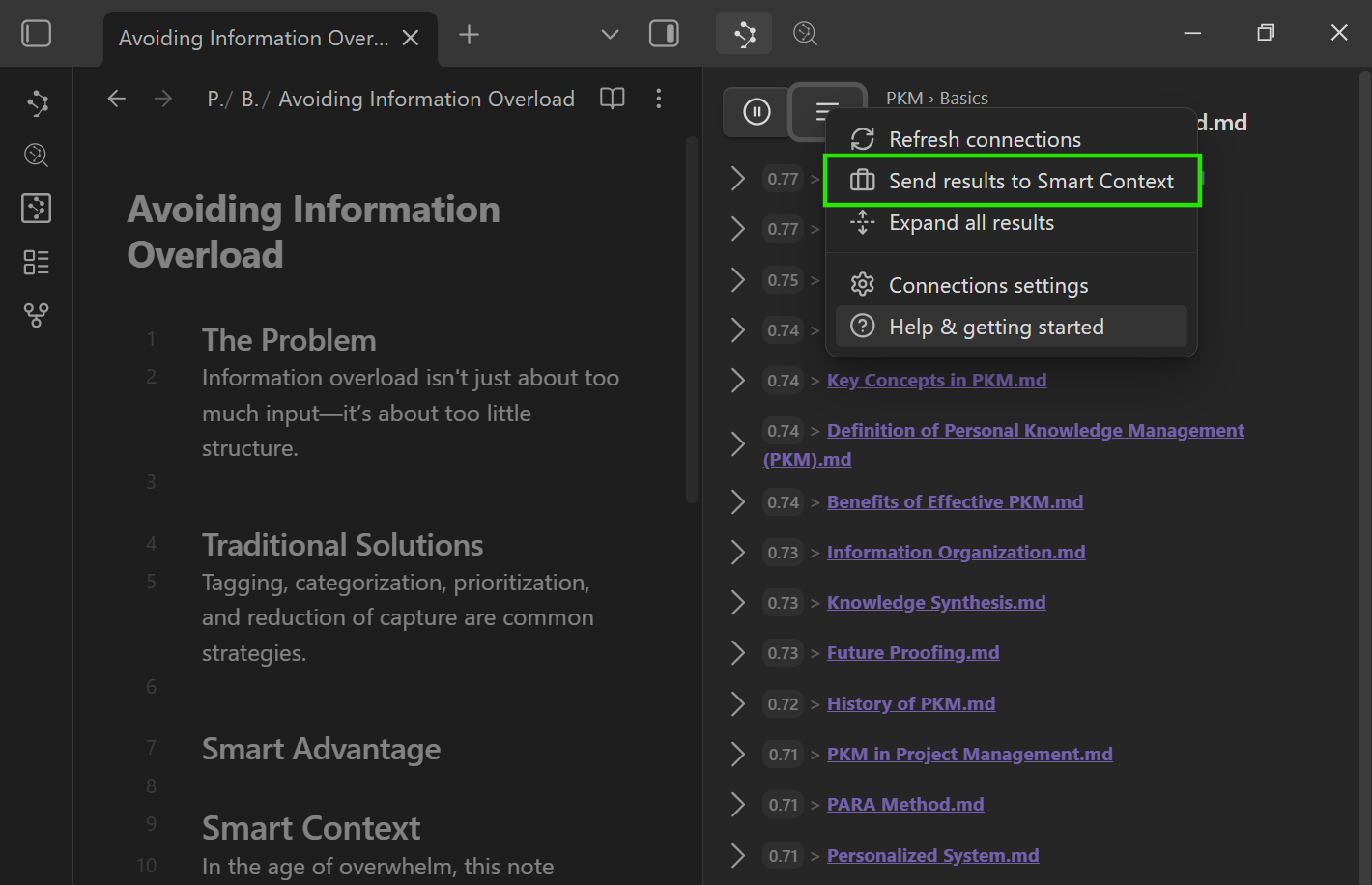
Use Send results to Smart Context in Smart Connections to convert matches into a context set you can edit in the Builder.
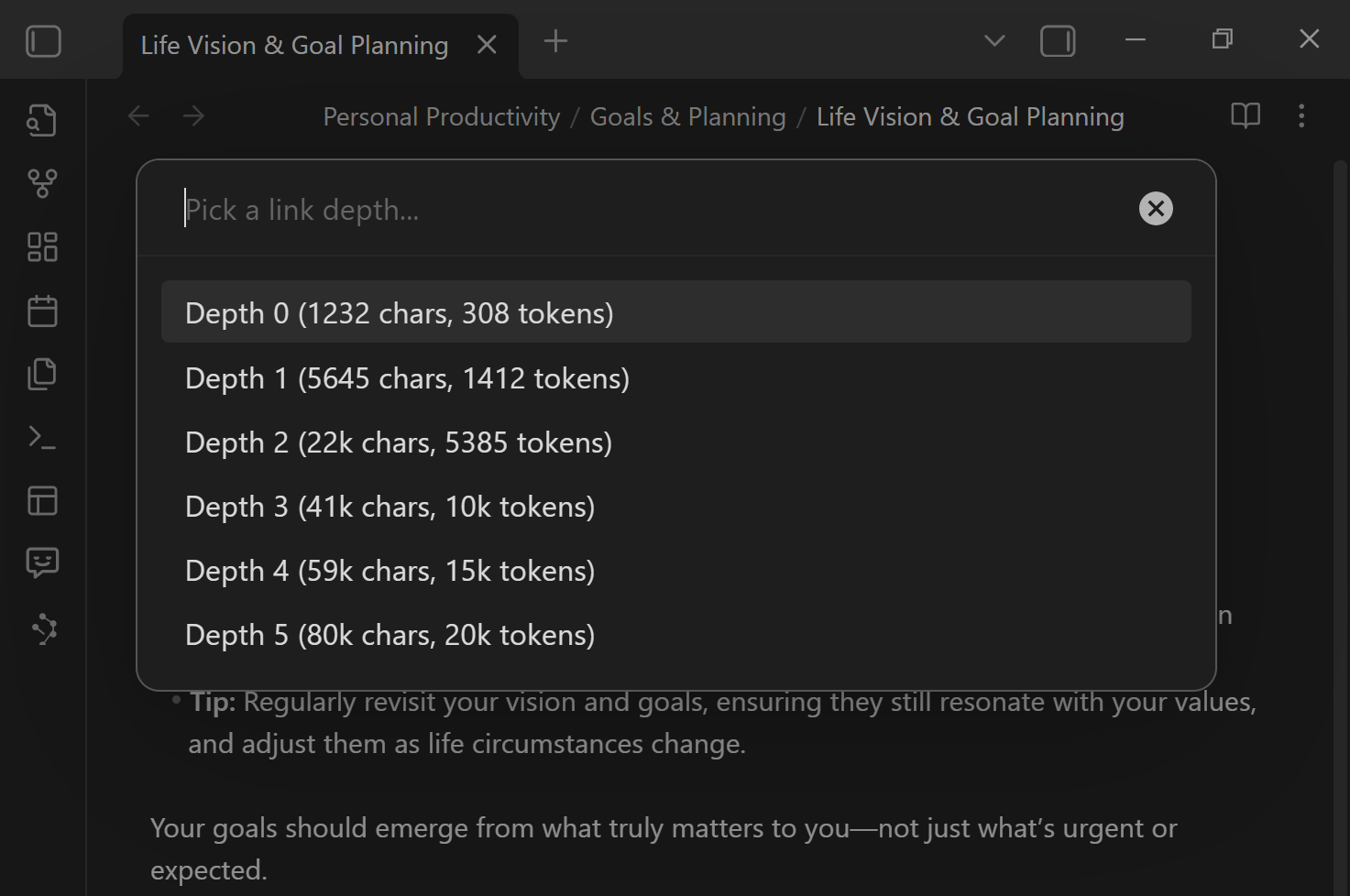
When exporting, choose a link depth to automatically include cited sources and related topics alongside your selection.
Export with link depth
- Trigger an export from the Builder or the Smart Connections link depth modal when you want related notes pulled in automatically.
- Pick a depth to include linked sources and keep the output organized by the originating note.
- Re-run with a smaller depth when you need lean context for strict token budgets.
Learn more about the context clipboard features.
Key commands
- Smart Context: Open Selector for New Context — open the Builder for a fresh set.
- Smart Context: Copy current to clipboard — fast export of the current selection.
- Smart Context: Copy entire folder to clipboard — best when your project already lives together.
- Smart Context: Show named contexts — browse and reopen saved bundles.
- Smart Context: Help: Show getting started — pull up a quick reference inside Obsidian.
[!TIP] Use Obsidian Settings → Hotkeys → search "Smart Context" to assign shortcuts for your most common actions.
Templates
Open Settings → Community plugins → Smart Context.

Context templates wrap the entire export. The default XML template includes {{FILE_TREE}} to show a hierarchical summary; remove it for a tighter payload.

Item templates wrap each note. Useful variables: {{KEY}} (full path), {{TIME_AGO}} (last modified), and {{LINK_DEPTH}} (depth when including linked notes).
- Use templates to switch between structured XML, Markdown summaries, or short bullet exports without changing your vault files.
- Adjust the default copy depth or prompt style in Settings → Context templates when you regularly include linked sources.
Templates only affect the text you copy/export—they do not change your vault files.
Learn more in the context settings reference guide.
Mission-driven
The Obsidian community proved user-aligned software can out-innovate closed platforms. Smart Context embodies that spirit—open-source tools that empower individuals, not gatekeepers. Read about the Smart Principles that guide development.
Private by Design
No data leaves your vault unless you copy it. All parsing, filtering, and token estimates run locally. Use local embedding models or remote APIs—it is your choice.
FAQs
Can I change how the context is formatted?
Yes. Adjust the Context and Item templates in **Settings → Community plugins → Smart Context**. Edit variables like `{{FILE_TREE}}`, `{{KEY}}`, and `{{TIME_AGO}}` to match your workflow.Does it work on mobile?
Yes, the Core Smart Context plugin is mobile friendly. **Context Pro**: some features are not compatible with mobile.What is the Smart Ecosystem?
Smart Context is one piece of a larger ecosystem of local first, user aligned tools. I build Smart Plugins to explore new ideas, ship practical workflows, and keep complexity manageable inside Obsidian. Smart Context is the piece that enables Context Engineering inside Obsidian.Thanks to the Community
Your feedback and support keep the project alive—thank you! 🌴