|
|
||
|---|---|---|
| .github/workflows | ||
| assets | ||
| licenses | ||
| scripts | ||
| src-ts | ||
| .gitignore | ||
| eslint.config.mjs | ||
| eslint.obsidian.config.mjs | ||
| LICENSE | ||
| manifest.json | ||
| package-lock.json | ||
| package.json | ||
| README.md | ||
| RELEASE_POLICY.md | ||
| styles.css | ||
| THIRD_PARTY_NOTICES.md | ||
| tsconfig.json | ||
| versions.json | ||
| wasm-hashes.json | ||

Local Image Compress
Compress PNG and JPEG files directly in your Obsidian vault on your computer, without cloud services or APIs. Reduce the disk space used by images by 30–70% without sacrificing quality.
Read in your language: English • العربية • Deutsch • Español • فارسی • Français • Bahasa Indonesia • Italiano • Nederlands • Polski • Português • Português (Brasil) • Русский • ไทย • Türkçe • Українська • Tiếng Việt • 日本語 • 한국어 • 中文简体 • 中文繁體
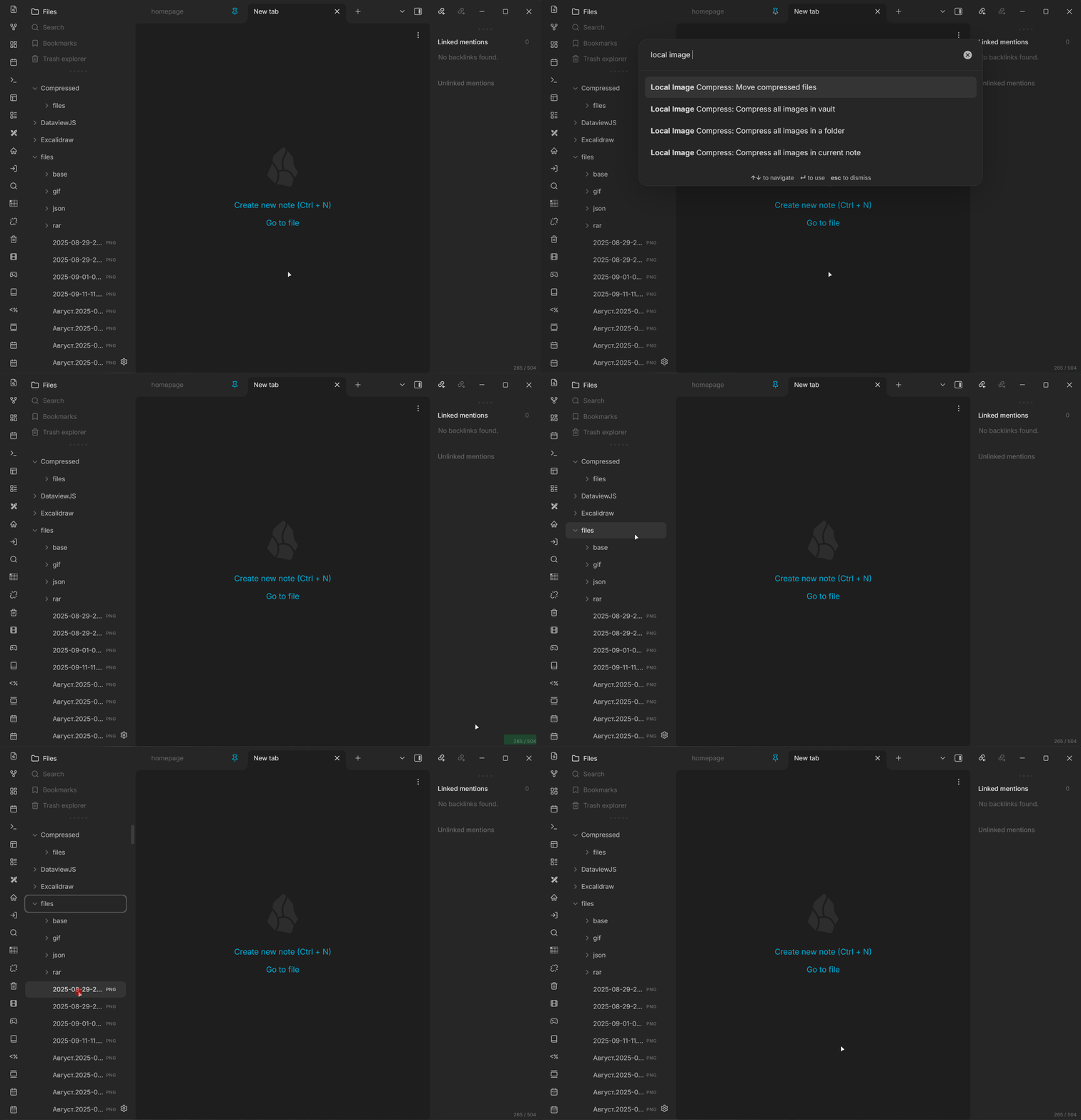
Table of contents
- Features
- Supported formats
- Settings
- How it works
- Data storage and backups
- Automation
- Interaction with Paste Image Rename
- Privacy and external behavior
- Tips
- FAQ
- License
Features
- Local compression: PNG and JPEG images are compressed locally.
- Commands:
- Compress all images in note: Processes images referenced or used in the active note.
- Compress all images in folder: Lets you select a folder and compresses all supported images inside it, excluding the output folder.
- Compress all images in vault: Scans the entire vault, excluding the output folder.
- Move compressed files: Moves compressed results to the original file locations. Before moving, it creates backups of both the original and compressed versions.
- Automation:
- Automatically compress new files when they are added
- Background compression after user inactivity when the number of uncompressed images in the vault reaches the threshold.
- UI and convenience:
- Context menu for files and folders
- Space savings indicator with a detailed tooltip
- Status bar progress indicator
- Safety and reliability:
- Cache of processed files with cache backups
- Backups created before moving compressed files, with automatic deletion.
Supported formats
- PNG (
imagequantWASM pipeline) - JPEG/JPG (
mozjpegWASM pipeline)
WebP, GIF, BMP, HEIC/HEIF, and AVIF are intentionally skipped in this release because the plugin does not include encoders for those formats.
Settings
| Setting | Description | Type/range | Default |
|---|---|---|---|
| PNG quality (min-max) | Quality range for lossy PNG quantization | 1-100 (e.g. 65-80) |
65-80 |
| JPEG quality | JPEG compression quality | 1-95 | 85 |
| Allowed roots | Relative paths where compression is allowed. Empty = entire vault | list of strings | empty |
| Output folder | Folder where compressed files are saved | string | Compressed |
| Auto-compress new files | Compress new images when they are added | boolean | false |
| Background compression | Compress in the background when inactive | boolean | true |
| Background threshold | Number of uncompressed images required to start background compression automatically | 10-1000 | 50 |
| Inactivity threshold | Minutes without user activity before background compression starts | 1-60 minutes | 2 |
| Auto backup retention | Automatically delete old pre-move backups | boolean | false |
| Keep backups, days | Delete move backups older than N days when automatic retention is enabled | 1-365 | 30 |
| Auto-move compressed files | Move compressed files back to the original image locations on startup, replacing the originals | boolean | false |
| Auto-move threshold | Number of compressed files ready to move that triggers auto-move | 1-1000 | 50 |
How it works
- Compressed files are saved in the
Compressedfolder while preserving the original path structure. - The cache records processed files and their original sizes to prevent repeated compression and calculate savings correctly.
- “Move compressed files” moves files from
Compressedback to their original locations when the original is inside an allowed root. A backup is created before moving.
Minimum sizes for compression: very small files are usually skipped (<5KB for PNG and <10KB for JPEG).
Internal safety limits are fixed: files larger than 100 MB are skipped before reading, and images above 100 million pixels are skipped after header validation.
Data storage and backups
- Primary cache: stored in the plugin folder.
- Cache backups: stored in
Vault/.local-image-compress/backups/cache/; up to 50 files are kept. - Image backups: stored in
Vault/.local-image-compress/backups/originals/; created before the originals are replaced.
Automation
- Enabling “Background compression” makes two sliders available:
- Background compression threshold: 10–1000 images, default 50.
- Inactivity threshold: 1–60 minutes, default 2.
- Enabling “Keep backups, days” shows the retention-period slider.
- Enabling “Auto-move compressed files” shows the file-count threshold. On startup, moving begins when the number of files in
Compressedmeets or exceeds the threshold.
Interaction with Paste Image Rename
This plugin temporarily disables the third-party plugin obsidian-paste-image-rename while compressing or moving files. This protection cannot be turned off because mapping compressed output to its original depends on newly created files not being renamed by another plugin.
Why this protection is needed
Why it is needed:
- Paste Image Rename registers a
vault.on("create")handler that fires for every image added to the vault within about one second of creation. It always acts on files whose name starts withPasted image, and on all other images when its "Handle all attachments" option is enabled. - When this plugin writes compressed copies to the output folder, those new files trigger that handler. With an active Markdown view, Paste Image Rename either renames the newly written output, breaking the compressed-to-original mapping used by the move operation, or shows a rename dialog for every file. Without an active Markdown view, it shows an
Error: No active file foundnotice for every created file, flooding the interface with errors during batch processing. - Obsidian has no public API that lets one plugin ask another to pause, so temporarily disabling this one plugin is the only reliable solution.
How this is handled safely:
- Only the known plugin ID
obsidian-paste-image-renameis affected, and only during compression or move operations. - The plugin is restored afterward, with retries when needed, unless its state changes externally. The guard records whether it disabled the plugin and does not attempt to restore it after such a change.
- Enabling or disabling the plugin uses Obsidian's internal
app.pluginsAPI because no public equivalent exists. Calls are guarded by feature detection, and errors are handled gracefully.
Privacy and external behavior
- Network: the plugin makes no runtime network requests. PNG/JPEG codecs are bundled in
main.js; images are not uploaded. - Telemetry and ads: no analytics, telemetry, crash reporting, tracking, dynamic ads, or self-update mechanism is included.
- Accounts and payments: no account, subscription, license key, or payment is required. The optional funding link in the manifest is never accessed by the plugin.
- Vault files: the plugin reads supported images selected by commands, automation, or allowed roots. It writes compressed output to the configured vault-relative folder and replaces originals only through the documented move or auto-move workflow after creating backups.
- Local state: cache data is stored in the plugin folder. Cache and move backups are stored under
Vault/.local-image-compress/backups/. - External files: plugin-managed data stays inside the current vault. The “Open folder” actions only ask the operating system to reveal documented backup folders; they do not transmit data.
- Other plugins:
obsidian-paste-image-renamemay be temporarily disabled during compression or move operations, as described above, and is then restored with ownership checks.
Tips
- Reasonable quality ranges: PNG
65-80, JPEG75-90. - Configure “Allowed roots” if you want to compress only in specific folders, such as
files/orimages/. - Use background compression when the vault contains many uncompressed images.
FAQ
The plugin reports that the WebAssembly modules failed to initialize. Reload the plugin. If the error occurs again, include your Obsidian version, platform, and console error in the bug report.
Where are compressed files stored?
They are stored in Compressed by default. To replace the originals, use “Move compressed files”.
How are savings calculated? Savings are exact when the cache contains the original and output sizes. For uncompressed PNG/JPEG files, the plugin uses conservative estimates with capped ratios; the current sizes of compressed files are read from disk when needed.
License
GPL-3.0-or-later. Third-party licenses and notices: THIRD_PARTY_NOTICES.md.