| src | ||
| .editorconfig | ||
| .eslintignore | ||
| .eslintrc | ||
| .gitignore | ||
| .npmrc | ||
| .prettierrc | ||
| esbuild.config.mjs | ||
| LICENSE.md | ||
| manifest-beta.json | ||
| manifest.json | ||
| package-lock.json | ||
| package.json | ||
| README.md | ||
| styles.css | ||
| tsconfig.json | ||
| version-bump.mjs | ||
| versions.json | ||

Obsidian Dynamic Timetable
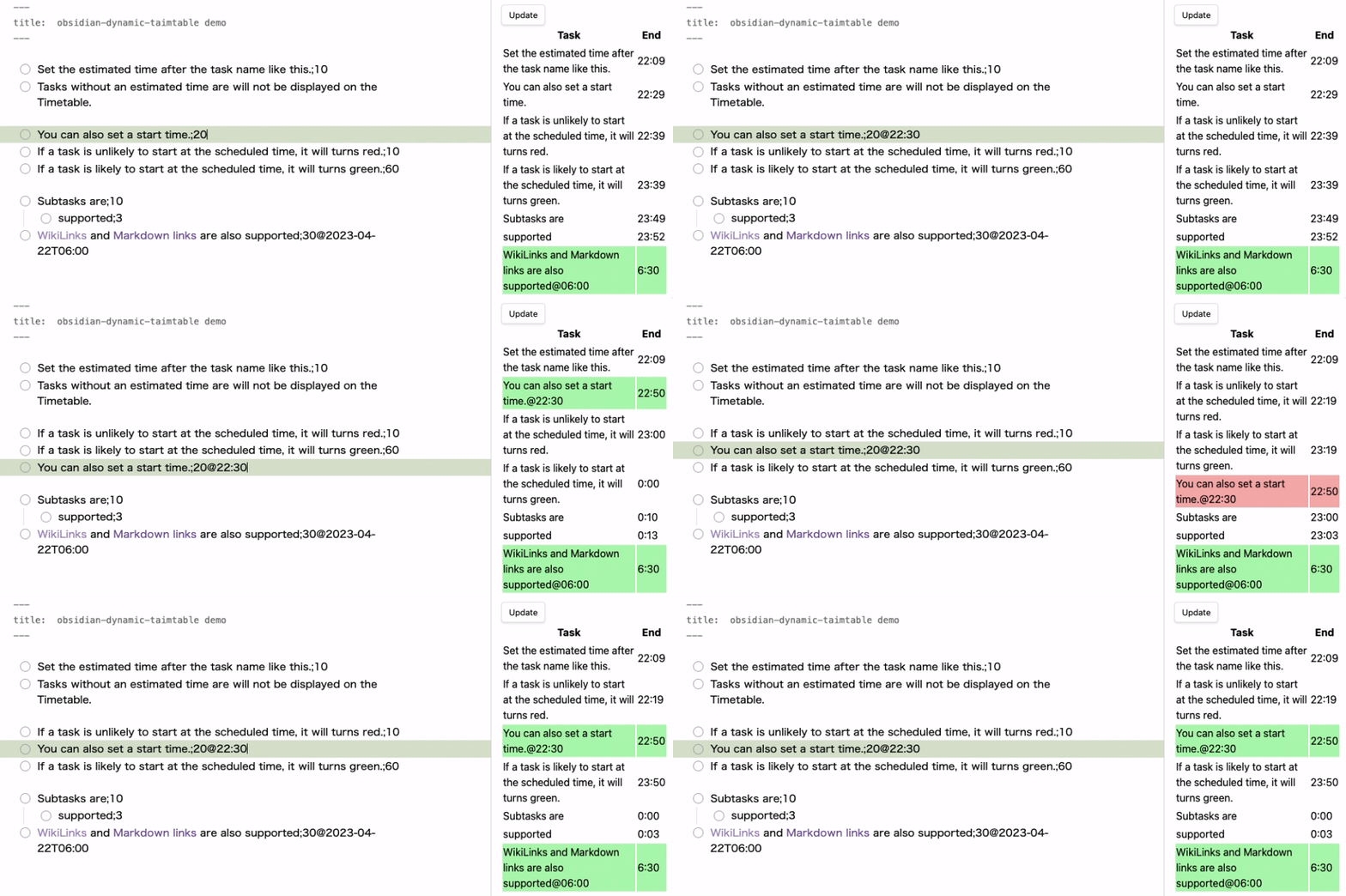
Dynamic Timetable is an Obsidian plugin that dynamically generates task timetables from Markdown files. This plugin was inspired by タスクシュート(TaskChute).
Installation
The plugin is now officially released as a community plugin. You can install it from below.
obsidian://show-plugin?id=dynamic-timetable
If you want to try the beta version, install it with L7Cy/obsidian-dynamic-timetable using BRAT.
Usage
The Dynamic Timetable plugin generates task lists and time estimates from markdown files. The plugin supports the following markdown formats for tasks (including subtasks).
- [ ] Task name ; Estimated time
- [ ] Task name ; Estimated time @ Start time
- [ ] Task name @ Start time ; Estimated time
Completed tasks and tasks without estimated time are excluded.
To display the task list, open the command palette (Ctrl/Cmd + P) and type "Show/Hide Timetable".
By default, the plugin uses the currently active file as the source of the task list. If you want to use a different file, you can specify the file path in the plugin settings.
Start time format
The start time is optional and can be added in two formats:
- Time only (e.g.,
@ 14:30) - Date and time (e.g.,
@ 2023-04-16T14:30)
Task background color
When a start time is specified, tasks will have a background color based on the comparison with the end time of the previous task:
- 🟢Green: Indicates that the task is likely to start at the scheduled time, and there may be room to add more tasks before it.
- 🔴Red: Indicates that it may be difficult to start the task at the scheduled time, and adjustments to previous tasks may be necessary.
This visual cue helps us understand how to effectively adjust our tasks.
License
This software is released under the MIT License.