| .github/workflows | ||
| __mocks__ | ||
| assets/images | ||
| .editorconfig | ||
| .gitignore | ||
| .npmrc | ||
| .prettierignore | ||
| .prettierrc | ||
| esbuild.config.mjs | ||
| eslint.config.js | ||
| Flowchart Plugin Test.md | ||
| jest.config.js | ||
| LICENSE | ||
| main.ts | ||
| manifest.json | ||
| package-lock.json | ||
| package.json | ||
| README.md | ||
| renderFlowchart.test.ts | ||
| styles.css | ||
| tsconfig.json | ||
| version-bump.mjs | ||
| versions.json | ||

Flowchart Plugin


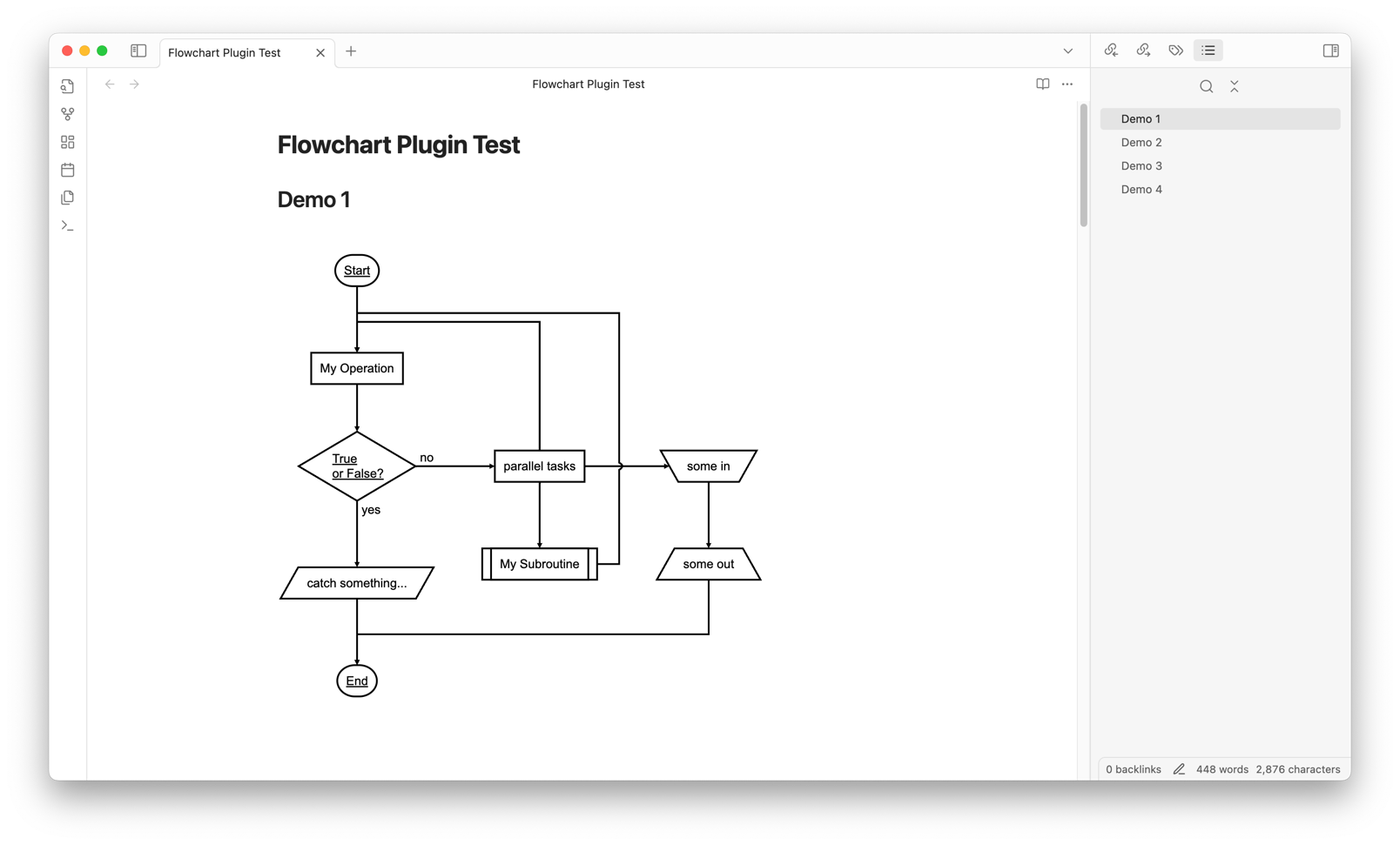
This is a custom plugin for rendering flowcharts in Obsidian using flowchart.js. It allows users to insert and render flowcharts directly within Obsidian notes using a dedicated code block syntax.
Features
- Renders flowcharts using
flowchart.jssyntax within Obsidian notes. - Supports customization of flowchart styles, such as line width, font size, colors, and element styling, directly from the plugin settings.
- Adjustable settings for each part of the flowchart, including start and end symbols, decision conditions, operations, and more.
- Provides an easy way to create interactive and visually appealing diagrams in your notes.
How to Use
-
Open a note in Obsidian and add a
flowchartcode block, like this:```flowchart st=>start: Start op=>operation: My Operation cond=>condition: Yes or No? e=>end: End st->op->cond cond(yes)->e cond(no)->op ``` -
The plugin will render the flowchart according to the configuration specified in the plugin settings. You can check more examples here: Flowchart Plugin test.
Plugin Settings
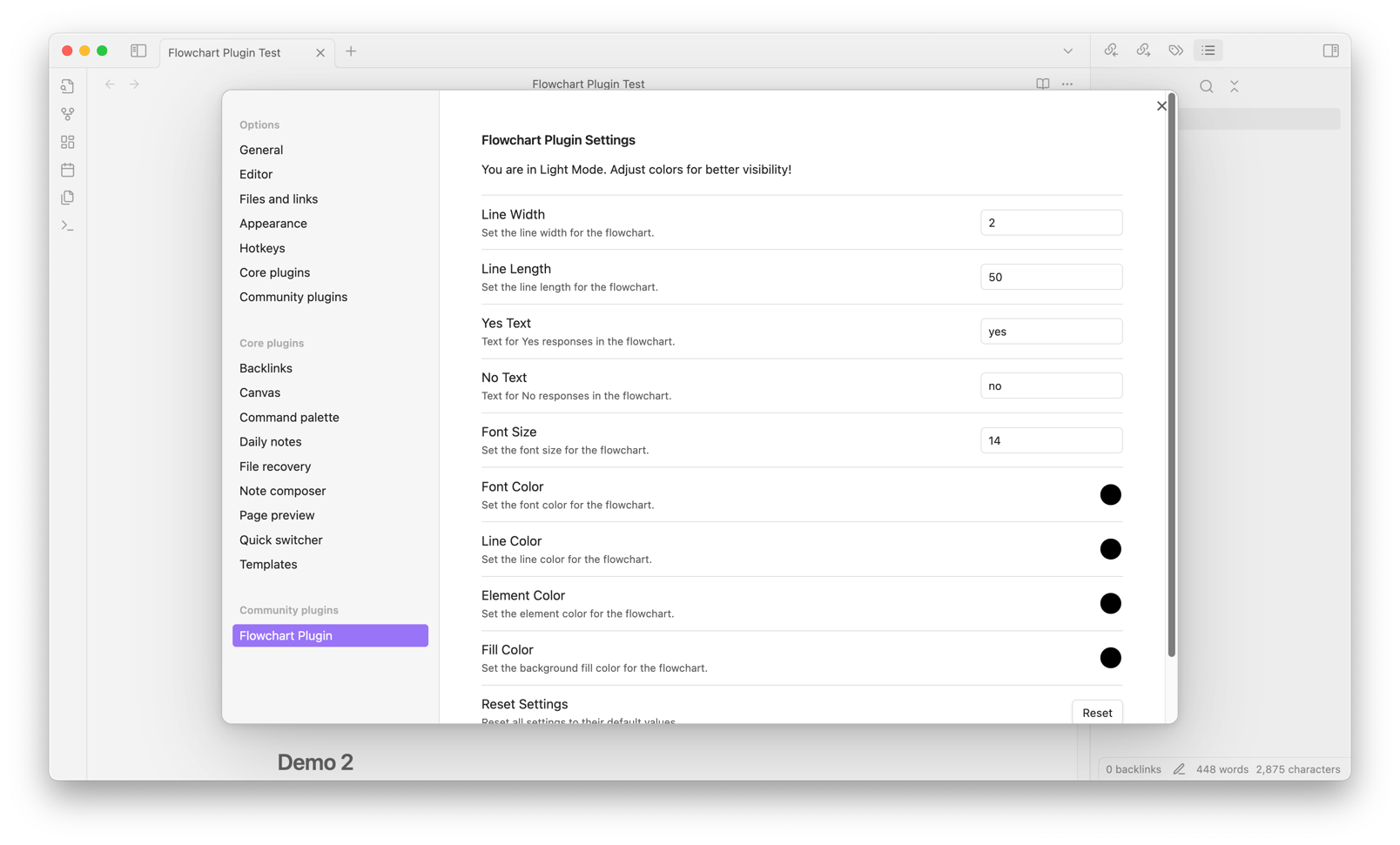
The plugin includes various settings that allow you to customize the appearance of the flowchart:
- Line Width: Controls the width of lines in the flowchart.
- Font Size: Sets the font size for text within the flowchart.
- Font Color: Changes the color of the font.
- Line Color: Sets the color of the lines connecting elements.
- Element Color: Adjusts the color of the shapes around text.
- Fill Color: Sets the background fill color for elements.
- Yes/No Text: Customizes the labels for decision paths.
You can access these settings under Settings > Community Plugins > Flowchart Plugin.
Development Guide
Building the Plugin
To build the plugin:
- Run
npm run buildto compile the TypeScript code. - Files will be output to the
distfolder for use in Obsidian.
Manually Installing the Plugin
If you'd like to install the plugin manually:
- Copy
main.js,styles.css, andmanifest.jsonto your Obsidian vault at.obsidian/plugins/obsidian-flowchart-plugin/. - Reload Obsidian and enable the plugin in Settings > Community Plugins.
Releasing New Versions
- Update
manifest.jsonwith the new version. - Update
versions.jsonto specify compatible Obsidian versions. - Create a GitHub release using the new version number as the tag.
- Upload
manifest.json,main.js, andstyles.cssto the release.
Troubleshooting
If you encounter issues with rendering or plugin behavior:
- Ensure you are using a compatible version of Obsidian.
- Check the developer console (
Cmd + Option + Ion macOS orCtrl + Shift + Ion Windows/Linux) for error messages. - Adjust settings to verify if certain configuration options are causing issues.
Contributing
Contributions to improve the plugin or add new features are welcome! Submit a pull request or open an issue to discuss potential changes.
License
This plugin is licensed under the MIT License.