| docs/media | ||
| .editorconfig | ||
| .eslintignore | ||
| .eslintrc | ||
| .gitattributes | ||
| .gitignore | ||
| .npmrc | ||
| esbuild.config.mjs | ||
| LICENSE | ||
| main.ts | ||
| manifest.json | ||
| package.json | ||
| README.md | ||
| tsconfig.json | ||
| version-bump.mjs | ||
| versions.json | ||

Vault Nickname, a plugin for Obsidian
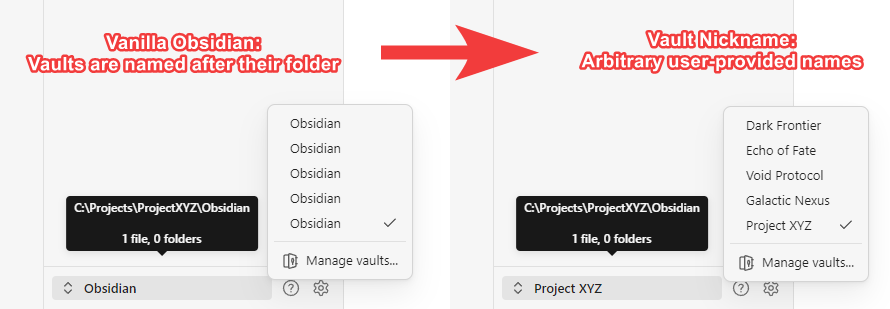
Features:
- Set a custom vault display name without renaming its folder.
- Choose the order of Obsidian's app title:
- Vault name before the document; or,
- Document name before the vault
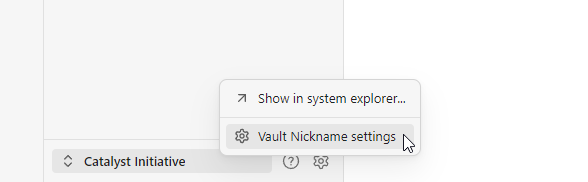
- A new context menu item on the vault switcher menu provides quick access to changing the vault's nickname.
Motive:
This plugin is intended to help disambiguate vaults that share the same folder name. This is common for users who adhere to a standard file structure between multiple projects. E.g., a "docs/" folder within each project.
Supporters:
- Big thank you to @claremacrae for her generous github sponsorship and bug reporting! ❤️
- Thank you to @t0b1hh for testing and reporting an issue affecting macOS.
- Thank you to @jakeanq for testing and reporting an issue affecting Arch Linux.
Install guide:
- Open Obsidian's Settings.
- Choose Community plugins from the left side bar.
- If Restricted Mode is enabled, tap Turn on community plugins to disable it. Otherwise, skip this step.
- Tap Browse.
- Type
Vault Nicknamein the search bar. - Tap the Vault Nickname plugin.
- Tap Install.
- Tap Enable.
- Tap Options to enter your custom nickname.
- Done!
Important
🚨 Vault Nickname must be installed in each vault where you wish to see other vault nicknames from.
This is required because plugins can only affect the user interface of vaults where they're installed. If a vault doesn't need a nickname itself, but needs to see other vaults' nicknames, you may still install the plugin and simply clear the nickname field for the already-correct vault.
Plugin settings:
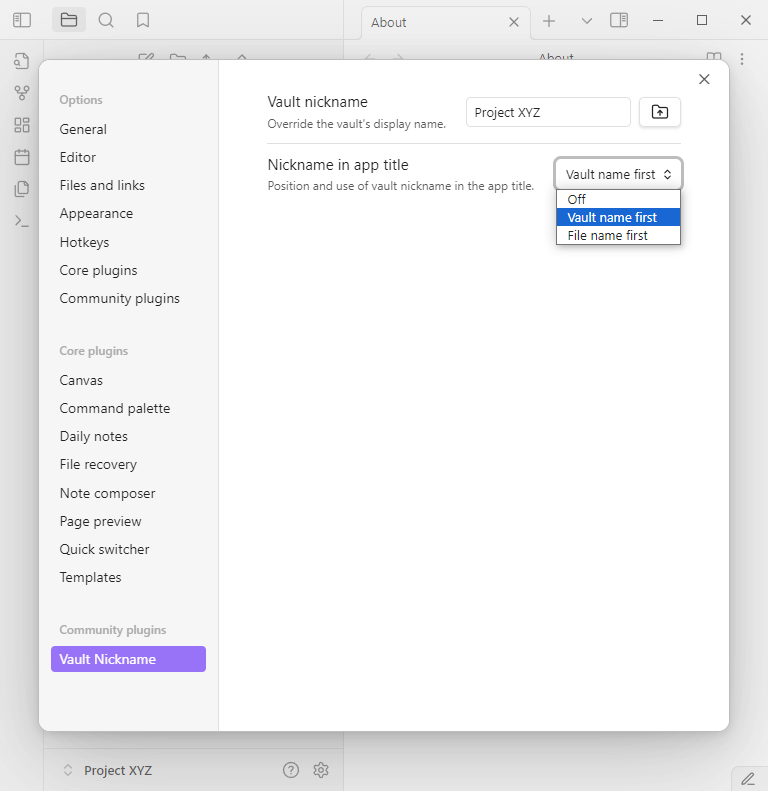
Vault nickname
The name to display instead of the vault's folder name. When this is blank, the vault's display name will fallback to its default value (its folder name). The button next to this setting assigns the vault's parent folder's name as the nickname. The parent folder's name is treated as the default nickname when the plugin is installed.
Nickname in app title
Choose how the nickname is applied to the app's title. The default value is "File name first" which is consistent with Obsidian's default behavior except the vault's nickname will be used.