ad06c8f4d8
- `jira-sync-block-start-` docs fix
- custom fields functions correct load on startup
- jira values highlight rollback due to contributor dropped feature full realization. (In current state it's too buggy to release)
7.1 KiB
The functionality of the plugin can be divided into several parts.
Basic Functionality
For basic functionality, it is enough to specify Jira credentials and the folder for created tasks.
Authentication Methods The plugin supports three authentication methods:
- Bearer Token (PAT) - Personal Access Token authentication
- Basic Auth (Username + PAT) - Username with Personal Access Token
- Session Cookie (Username + Password) - Traditional username and password authentication
Important Note for Auth Keys: If using Personal Access Token authentication, the write:jira-work and read:jira-work scopes are essential for the plugin to function properly.
When running Get issue from Jira with custom key, the command will download the latest tasks from Jira and save them in the specified folder.
Without a template, such a page will be completely empty except for its title, so using a template is highly recommended. The template is used only when creating a new page.
Template
The template can consist of several different parts:
Frontmatter
Meta-information at the top of the screen. When specifying keys for it and using any Get issues from Jira variant, they will be populated with corresponding fields from the response data.
Body
The main content of the page. When using indicators like jira-sync-"type"-*, they will be filled with the corresponding fields from the response data.
The difference between these options is as follows:
linereads and writes values from the current line.
Example:
The responsible person for this task is `jira-sync-line-assignee` Bob
The description is `jira-sync-line-description` Some description
sectionreads values from multiple lines after the indicator, stopping only at any other indicator or a heading.
Example:
### Responsible `jira-sync-section-assignee`

Bob

### Description `jira-sync-section-description`

Some description
`jira-sync-section-customfield_10842`
...
inlineallows indicator of start and end to be placed anywhere in the text. Must have an ending part of indicator (jira-sync-end).
Example:
The responsible person for this task is `jira-sync-inline-start-assignee`Bob`jira-sync-end`, and the description is `jira-sync-inline-start-description`Some description`jira-sync-end`.
blockis basically the same asinline, but with line break before and after indicators.
Example:
The responsible person for this task is `jira-sync-block-start-assignee`
Bob
`jira-sync-end`, and the description is `jira-sync-block-start-description`
Some description
`jira-sync-end`.
An example can be found in docs/template_example.
It is highly recommended to specify the following basic values in the template's formatter: key - the Jira task ID used for updates, summary - the Jira task title, and status - the current status of the task in Jira.
The formatter takes priority and will overwrite file content values when updating a task in Jira if a field's value is present in both as formatter saves initial format of value and when putting it in body we parse it to string.
Not all fields are predefined, and some may need adjustments. To add any custom nonusual fields, features of their representation in .md format and how to update their info in Jira, refer to the advanced usage section below.
Commands
Currently, the plugin provides the following commands:
Get issue from Jira with custom key- allows creating a file in the configured folder that imports information from Jira using a manually specified ID.Batch Fetch Issues by JQL- allows mass issue import from Jira using a JQL query.Get current issue from Jira- allows updating the active file if its formatter contains akey(the Jira task ID).Update issue in Jira- allows updating the information from the file in Jira using the key specified in the formatter. Some system fields (e.g.,status) cannot be changed this way and have dedicated commands.Create issue in Jira- allows creating a new task in Jira. The formatter must includesummary(task title) and optionallyprojectandissuetype(the latter two can be selected from existing options during creation).Update work log in Jira manually- enables manual time tracking for a task. Currently, this is not reflected in the file, but it will be available in future updates.Update work log in Jira by batch- enables batch time tracking. If the formatter containsjira_worklog_batch, a batch of data fromjira_worklog_batchwill be sent, updating each listed entity.Update issue status in Jira- allows updating a task's status by selecting one of the available options.Add comment to Jira- allows adding a comment to the current task in Jira.
Advanced Usage
Field Mapping
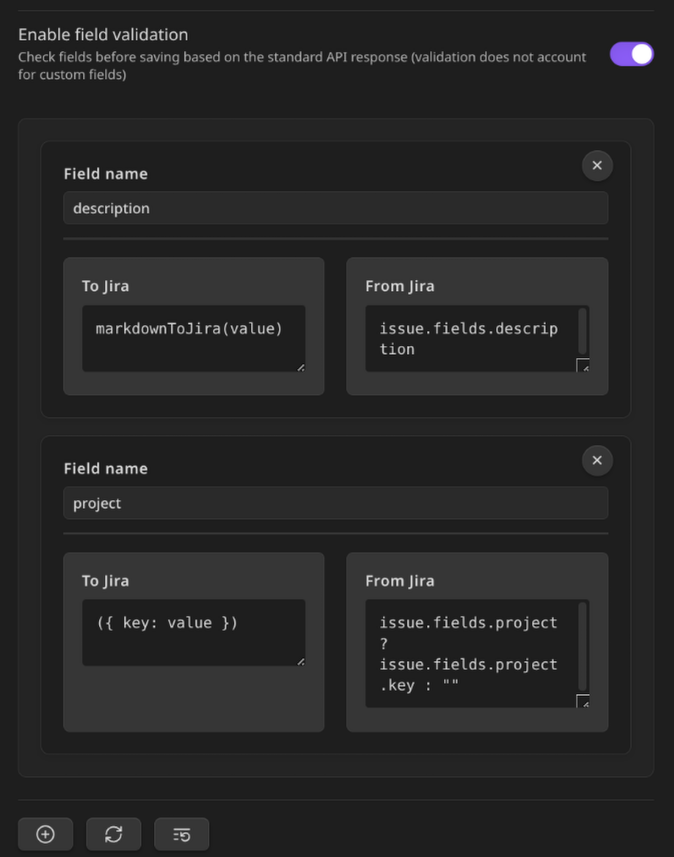
In the settings, you can configure custom mapping for any additional fields received from Jira. To do this:
- Configure how information is sent to Jira (e.g., with the
nullfunction, the field will be ignored). - Define how it is received from Jira (e.g.,
issue.fields.creator.namewill retrieve the creator's name instead of the entire object with related data).
Similarly, you can configure the progressPercentage shown in the example. This field does not exist in the response, but it can be "assembled" from the existing progress field: issue.fields.progress.total ? 100 * issue.fields.progress.progress / issue.fields.progress.total : 0. As seen in the syntax, mapping uses a simplified TypeScript format.
Additionally, you can use some of the built-in functions:
jiraToMarkdown- converts Jira markup to Markdown. (for Jira API v2)markdownToJira- converts Markdown to Jira markup. (for Jira API v2)markdownToAdf- converts Markdown to Atlassian Document Format (ADF). (for Jira API v3)adfToMarkdown- converts ADF to Markdown. (for Jira API v3)JSON.parse- converts a JSON string to an object.JSON.stringify- converts an object to a JSON string.
and modules: (original JavaScript syntax)
Math- provides access to mathematical functions, such asMath.round().Date- provides access to date functions, such asDate.now().String- provides access to string functions, such asString.fromCharCode().Number- provides access to number functions, such asNumber.isNaN().Boolean- provides access to boolean functions, such asBoolean(true).Array- provides access to array functions, such asArray.isArray().Object- provides access to object functions, such asObject.keys().
Field mapping can like this:
Time Tracking Statistics
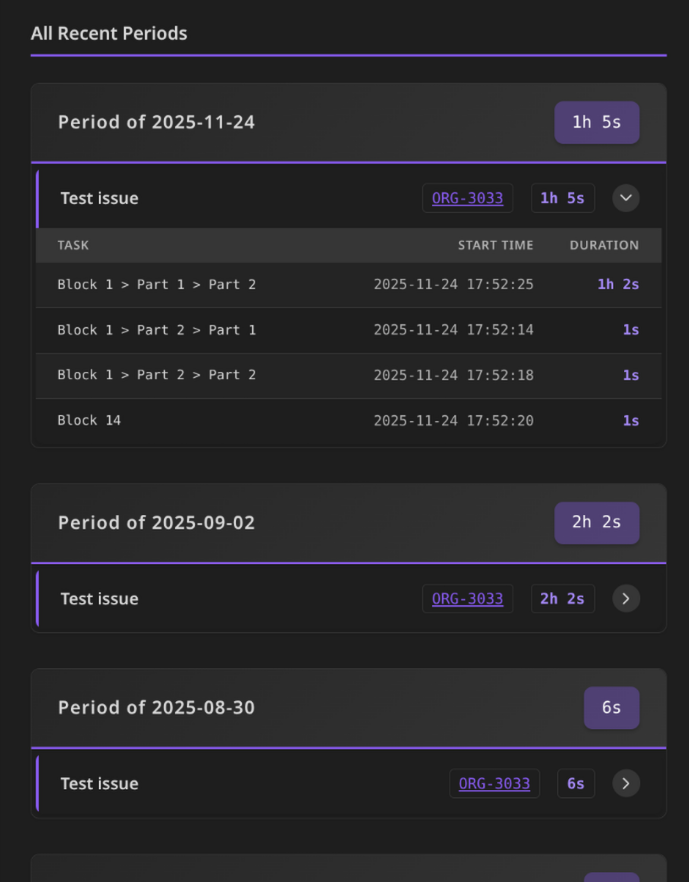
Statistics can be accessed through the plugin settings in the "Timekeep work log statistics" section. This feature provides a dynamically generated table (or series of tables) showing work statistics and allowing you to send work logs to Jira. You can conveniently select time periods for calculation and transfer work log information to Jira directly from the settings interface. The statistics feature supports timekeep and simple-time-tracker time tracking formats.
The table looks like this: