mirror of
https://github.com/gapmiss/iconoir-icons.git
synced 2026-07-22 04:40:01 +00:00
No description
| .github/workflows | ||
| assets | ||
| scripts | ||
| src | ||
| .editorconfig | ||
| .gitattributes | ||
| .gitignore | ||
| CONTRIBUTING.md | ||
| esbuild.config.mjs | ||
| eslint.config.mjs | ||
| LICENSE | ||
| manifest.json | ||
| package-lock.json | ||
| package.json | ||
| README.md | ||
| release.mjs | ||
| styles.css | ||
| tsconfig.json | ||
| version-bump.mjs | ||
| versions.json | ||

iconoir-icons
A plugin for creating & displaying customized SVG Iconoir Icons in Obsidian.
⚠️ NOTICE
Copyright (c) 2023 Luca Burgio - https://iconoir.com; License - https://github.com/lucaburgio/iconoir/blob/main/LICENSE (Code: MIT License)
features
icon search suggestions

custom CSS styles
installation
Install from community.obsidian.md
From Obsidian's settings or preferences:
- Community Plugins > Browse
- Search for "Iconoir Icons"
Manually:
- download the latest release archive
- uncompress the downloaded archive
- move the
iconoir-iconsfolder to/path/to/vault/.obsidian/plugins/ - Settings > Community plugins > reload Installed plugins
- enable plugin
or:
- download
main.js,manifest.json&styles.cssfrom the latest release - create a new folder
/path/to/vault/.obsidian/plugins/iconoir-icons - move all 3 files to
/path/to/vault/.obsidian/plugins/iconoir-icons - Settings > Community plugins > reload Installed plugins
- enable plugin
syntax
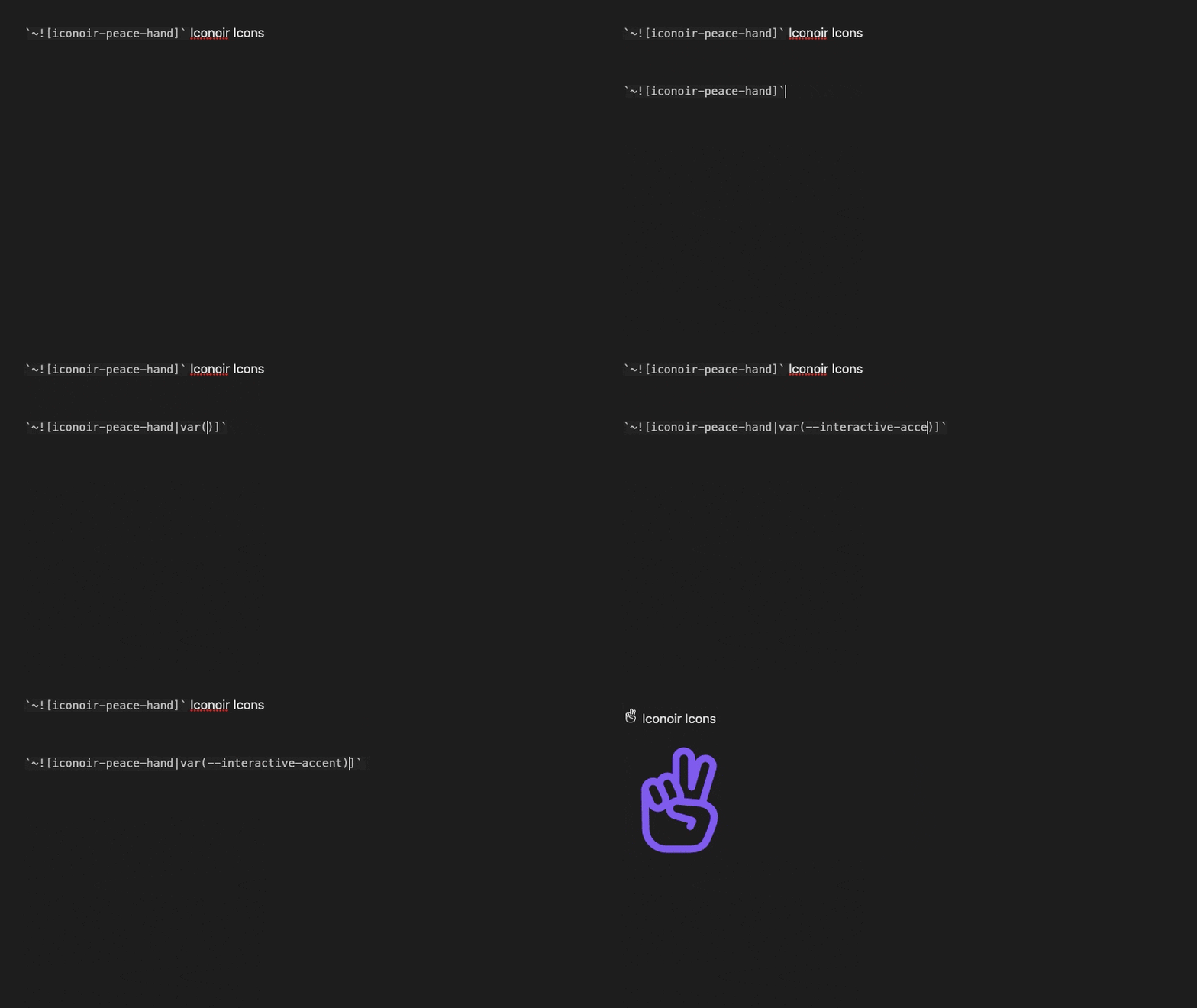
To trigger the icon name suggestion interface, type the ampersand key twice(&&) and start typing a query.
The syntax for the icon component is:
`~![ICON|COLOR|W|H|STYLE]`

The delimiter is the pipe symbol `|`.

ICON   = the name of the icon e.g. iconoir-peace-hand
COLOR  = the CSS color of the icon e.g. purple
W      = the CSS width of the icon e.g. 1em
H      = the CSS height of the icon e.g. 1em
STYLE  = the CSS rule(s) for the icon component e.g. float:right;

ONLY the ICON name is required. ALL others optional, but cannot be empty.

`~![iconoir-peace-hand|purple|1em|1em|float:right;]`
basic block
Alpha Bravo `~![iconoir-antenna|green|22px|22px]` Charlie Delta `~![iconoir-wristwatch|red|22px|22px]` Echo Foxtrot Golf `~![iconoir-golf|green|22px|22px]` Hotel India Juliet Kilo `~![iconoir-airplane|red|22px|22px]` Lima Mike November `~![iconoir-calendar|magenta|22px|22px]` Oscar Papa Quebec Romeo Sierra `~![iconoir-compass|var(--color-orange)|22px|22px]` Tango Uniform Victor `~![iconoir-dashboard-dots|red|22px|22px]` Whiskey Xray Yankee Zulu
results

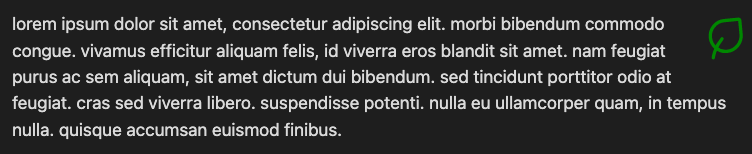
`~![iconoir-leaf|green|48px|48px|float:right;]` lorem ipsum dolor sit amet, consectetur adipiscing elit. morbi bibendum commodo congue. vivamus efficitur aliquam felis, id viverra eros blandit sit amet. nam feugiat purus ac sem aliquam, sit amet dictum dui bibendum. sed tincidunt porttitor odio at feugiat. cras sed viverra libero. suspendisse potenti. nulla eu ullamcorper quam, in tempus nulla. quisque accumsan euismod finibus.
results
lists
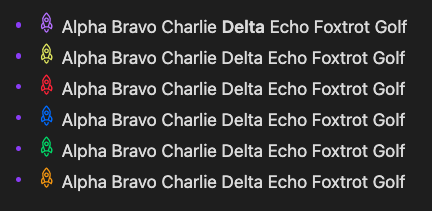
- `~![iconoir-rocket|var(--color-purple)]` Alpha Bravo Charlie Delta Echo Foxtrot Golf
- `~![iconoir-rocket|var(--color-yellow)]` Alpha Bravo Charlie Delta Echo Foxtrot Golf
- `~![iconoir-rocket|var(--color-red)]` Alpha Bravo Charlie Delta Echo Foxtrot Golf
- `~![iconoir-rocket|var(--color-blue)]` Alpha Bravo Charlie Delta Echo Foxtrot Golf
- `~![iconoir-rocket|var(--color-green)]` Alpha Bravo Charlie Delta Echo Foxtrot Golf
- `~![iconoir-rocket|var(--color-orange)]` Alpha Bravo Charlie Delta Echo Foxtrot Golf
results
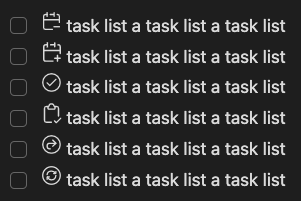
- [ ] `~![iconoir-calendar-minus|currentColor]` task list a task list a task list
- [ ] `~![iconoir-calendar-plus|currentColor]` task list a task list a task list
- [ ] `~![iconoir-check-circle|currentColor]` task list a task list a task list
- [ ] `~![iconoir-clipboard-check|currentColor]` task list a task list a task list
- [ ] `~![iconoir-redo-circle|currentColor]` task list a task list a task list
- [ ] `~![iconoir-refresh-circular|currentColor]` task list a task list a task list
results
headings
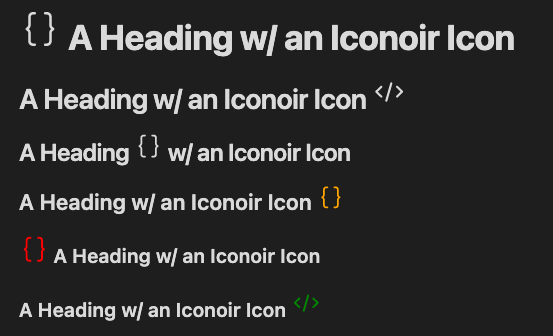
# `~![iconoir-code-brackets|currentColor]` A Heading w/ an Iconoir Icon
## A Heading w/ an Iconoir Icon `~![iconoir-code|currentColor]`
### A Heading `~![iconoir-code-brackets|currentColor]` w/ an Iconoir Icon
#### A Heading w/ an Iconoir Icon `~![iconoir-code-brackets|orange]`
##### `~![iconoir-code-brackets|red|1.5em|1.5em]` A Heading w/ an Iconoir Icon
###### A Heading w/ an Iconoir Icon `~![iconoir-code|green|1.5em|1.5em]`
results
callout styled block
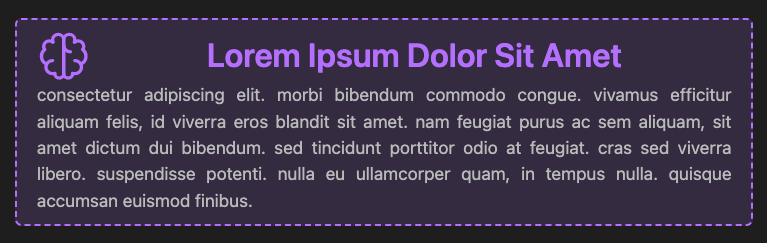
`~![iconoir-brain|currentColor|48px|48px]` **Lorem Ipsum Dolor Sit Amet** consectetur adipiscing elit. morbi bibendum commodo congue. vivamus efficitur aliquam felis, id viverra eros blandit sit amet. nam feugiat purus ac sem aliquam, sit amet dictum dui bibendum. sed tincidunt porttitor odio at feugiat. cras sed viverra libero. suspendisse potenti. nulla eu ullamcorper quam, in tempus nulla. quisque accumsan euismod finibus.
p:has(iconoir-icon[name=iconoir-brain]) {
  display: flex;
  flex-wrap: wrap;
  align-items: flex-start;
  color: var(--text-muted);
  border-radius: 6px;
  border: 2px dashed var(--color-purple);
  padding: 9px 18px;
  background-color: rgba(var(--color-purple-rgb), 0.15);
  text-align: justify;
}
iconoir-icon[name=iconoir-brain] {
  color:var(--color-purple);
  display:flex;
  margin-right: 7px;
}
strong {
  color:var(--color-purple);
  font-size: 1.88em;
  text-align: center;
  flex-grow: 1;
}
results
tables
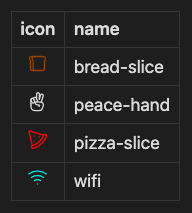
NOTE: When using icons in a table, the PIPE
|symbol must be escaped w/ a BACKSLASH\e.g.\|
|                  icon                  | name        |
|:--------------------------------------:| ----------- |
| `~![iconoir-bread-slice\|saddlebrown]` | bread-slice |
| `~![iconoir-peace-hand\|currentColor]` | peace-hand  |
|     `~![iconoir-pizza-slice\|red]`     | pizza-slice |
| `~![iconoir-wifi\|var(--color-cyan)]`  | wifi        |
results
additional CSS class support
- When using icons inside a
<th>or<td>, the CSS classspecial-iconoir-th-calloutorspecial-iconoir-td-calloutis added to the element. - When using icons inside a
<li>, the CSS classspecial-iconoir-list-calloutis added to the element. - In addition, a
data-iconattribute, w/ the icon name, is added to the same element for added specificity.
<td class="special-iconoir-th-callout" data-icon="iconoir-heart">
 <icon-component>
</td>

<li class="special-iconoir-list-callout" data-icon="iconoir-peace-hand">
 <icon-component>
</li>
development
clone this repo
cd /path/to/vault/.obsidian/plugins
git clone https://github.com/gapmiss/iconoir-icons.git
cd iconoir-icons
install packages and run
npm i
npm run dev
enable plugin
- open
Settings→Community plugins - enable the
Iconoir Iconsplugin.