| .github/workflows | ||
| src | ||
| .editorconfig | ||
| .eslintignore | ||
| .eslintrc | ||
| .gitignore | ||
| .prettierrc.json | ||
| babel.config.js | ||
| esbuild.config.mjs | ||
| LICENSE | ||
| main.ts | ||
| manifest.json | ||
| package.json | ||
| README.md | ||
| styles.css | ||
| tsconfig.json | ||
| versions.json | ||
| yarn.lock | ||

Obsidian Path Title
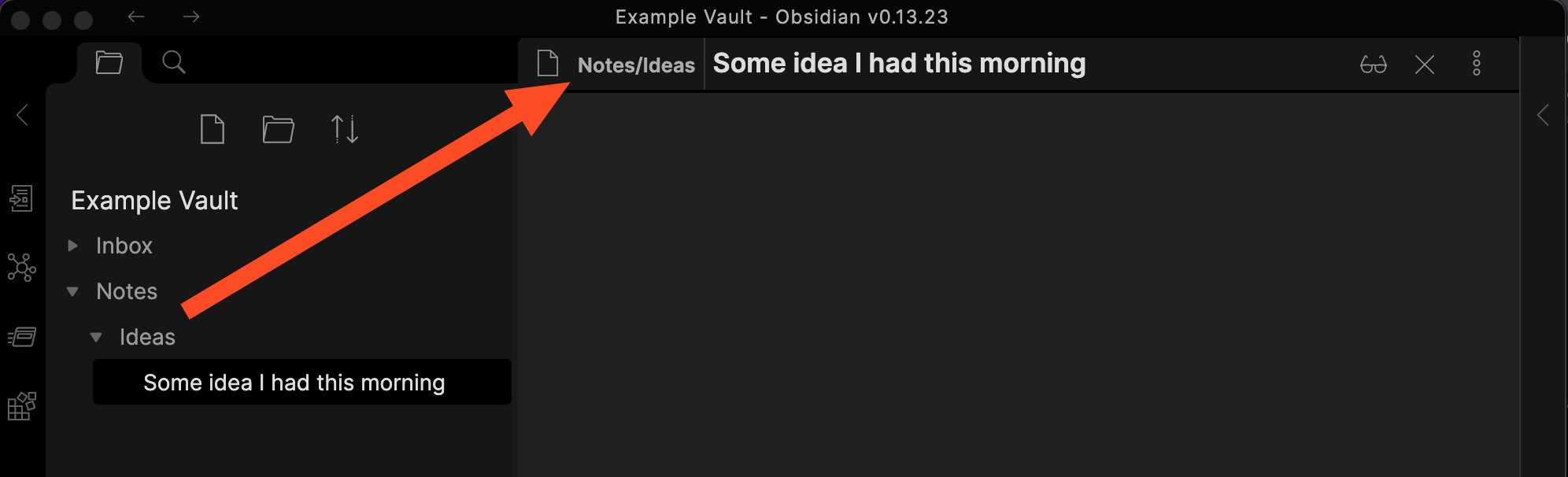
Show the path of the current file next to its name.
Usage
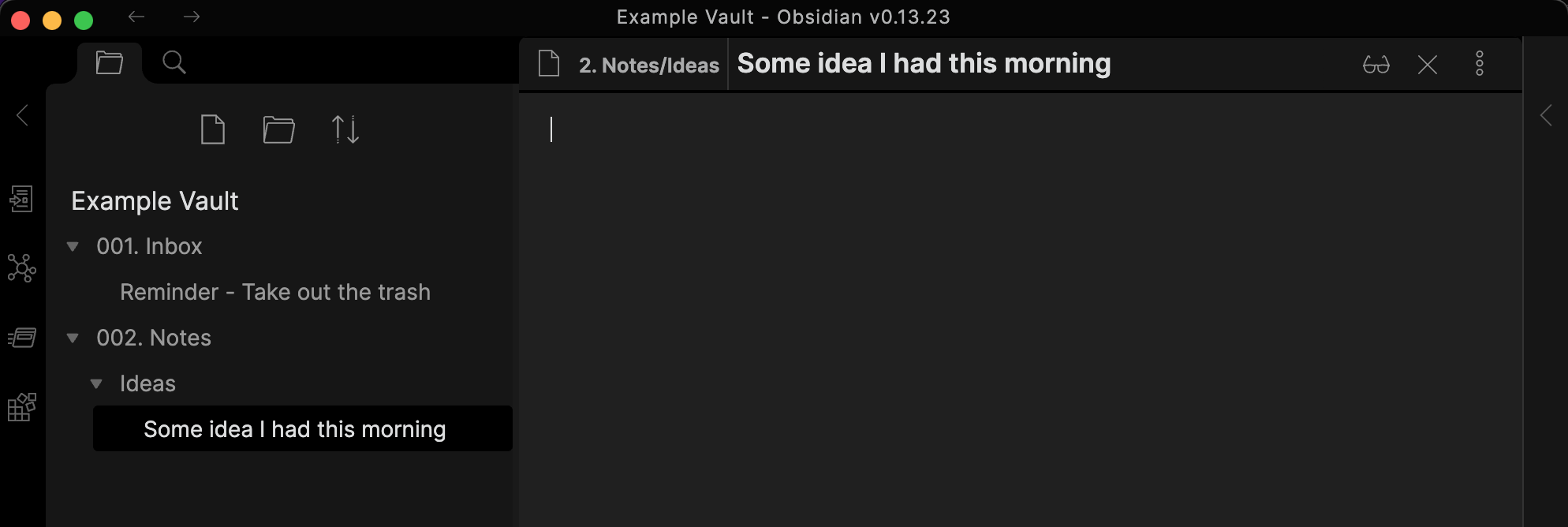
After you install, you'll get the behavior shown above, where the full path will shown before the file name. There is one basic option to change the appearance:
Path Font Size: Defaults to Medium, which is slightly smaller than the file name font. Set it to Large to make it the same size as the file name font or Small to make it even smaller.
Advanced Usage
The path replacement settings allow you to shorten or otherwise modify the path however you want. You can add multiple replacement settings, and they will all run in order from first to last.
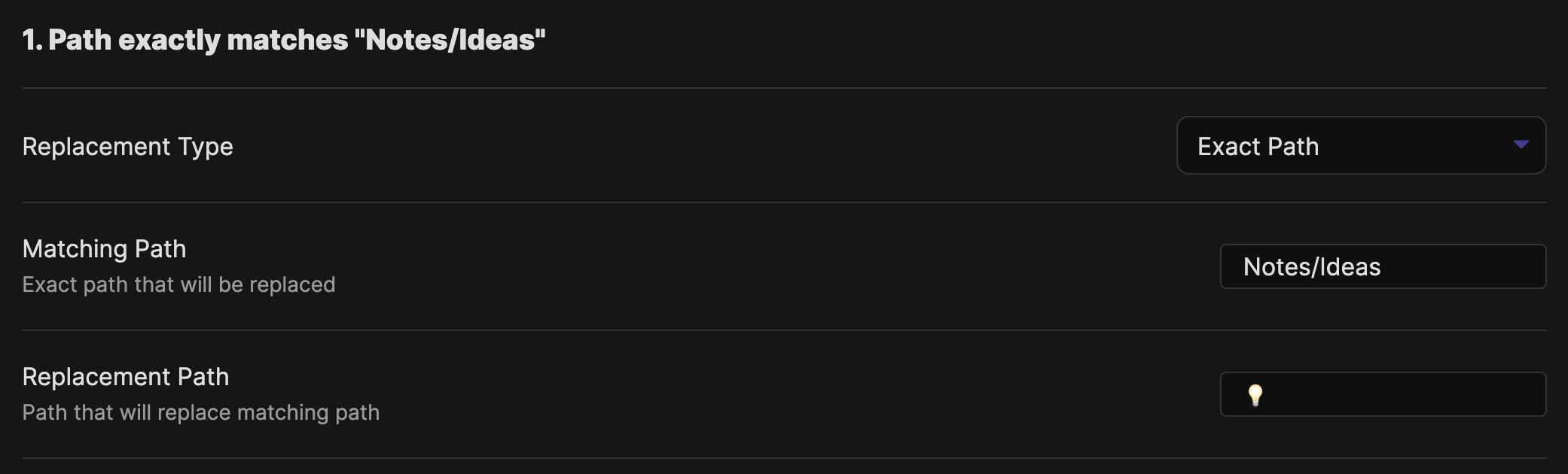
Exact Path Replacement
You can replace an exact match of the whole path with an alternate path. For example, here we replace "Notes/Ideas" with "💡".

Exact Folder Replacement
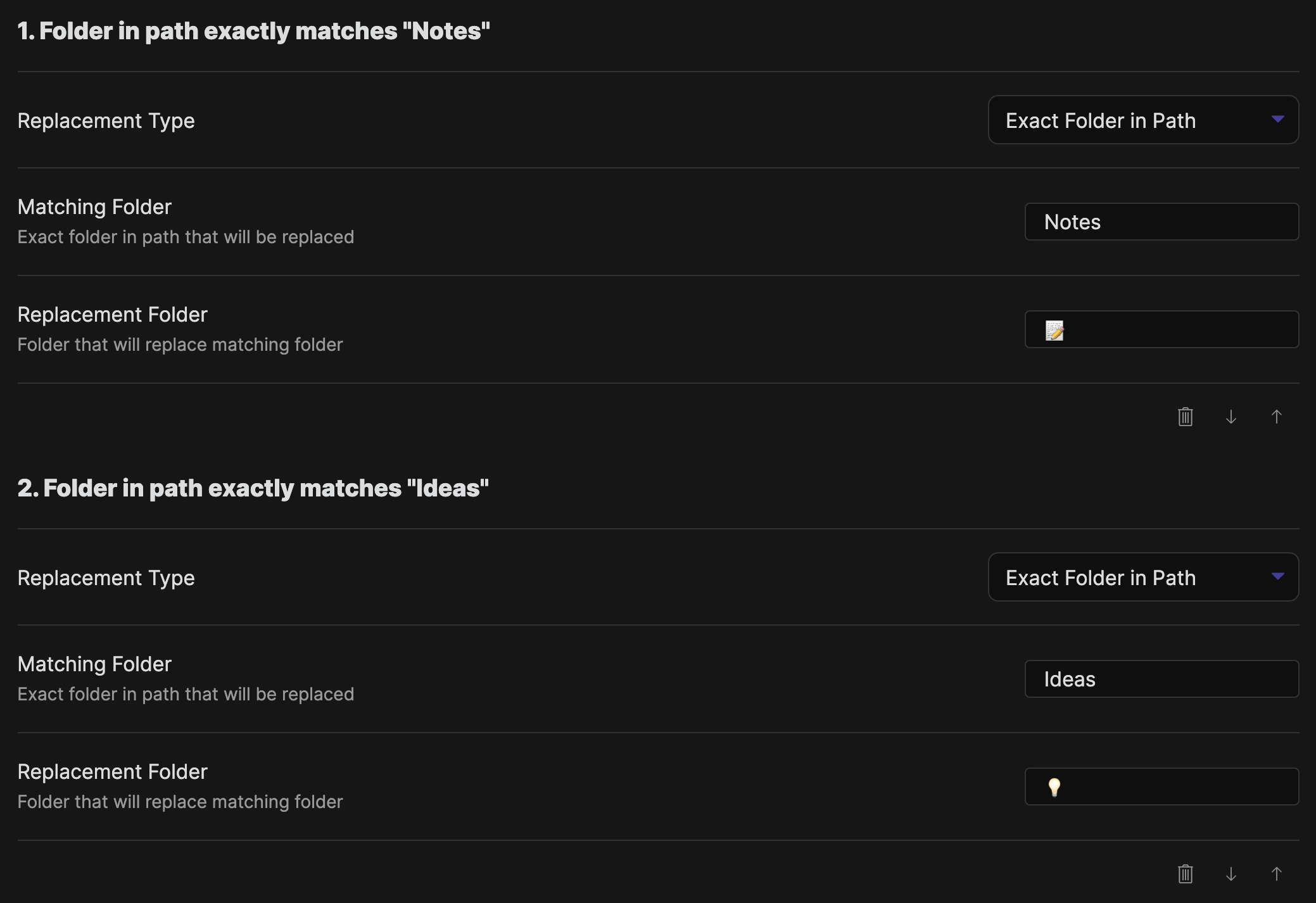
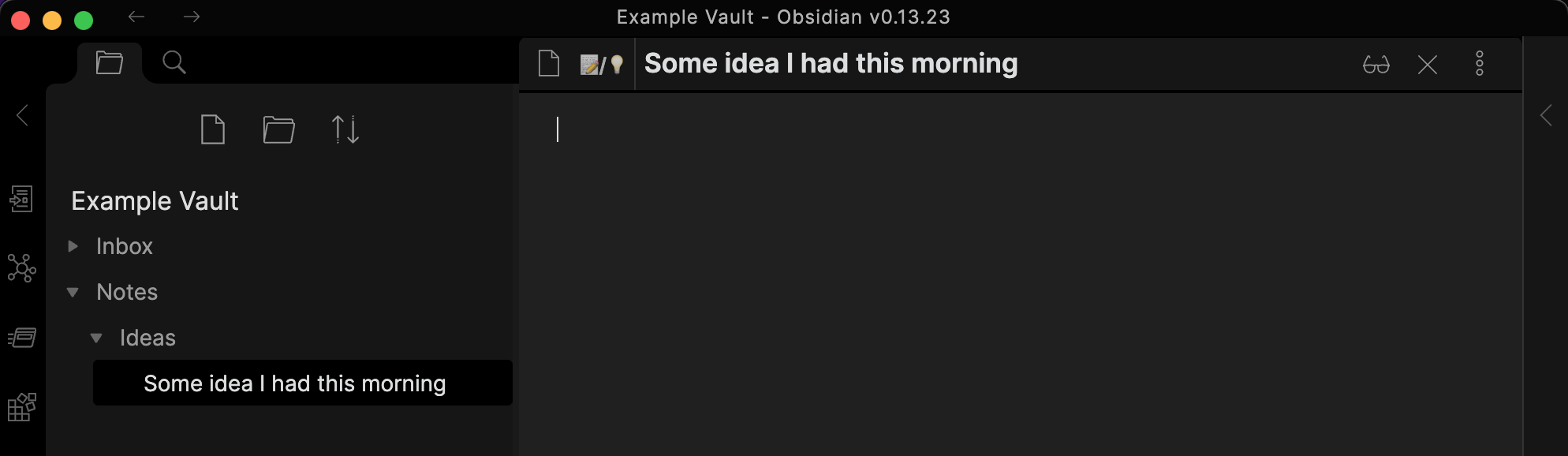
You can replace an exact match of one folder in the path with an alternate folder. For example, here we replace "Notes" with "📝" and "Ideas" with "💡".
Text Replacement
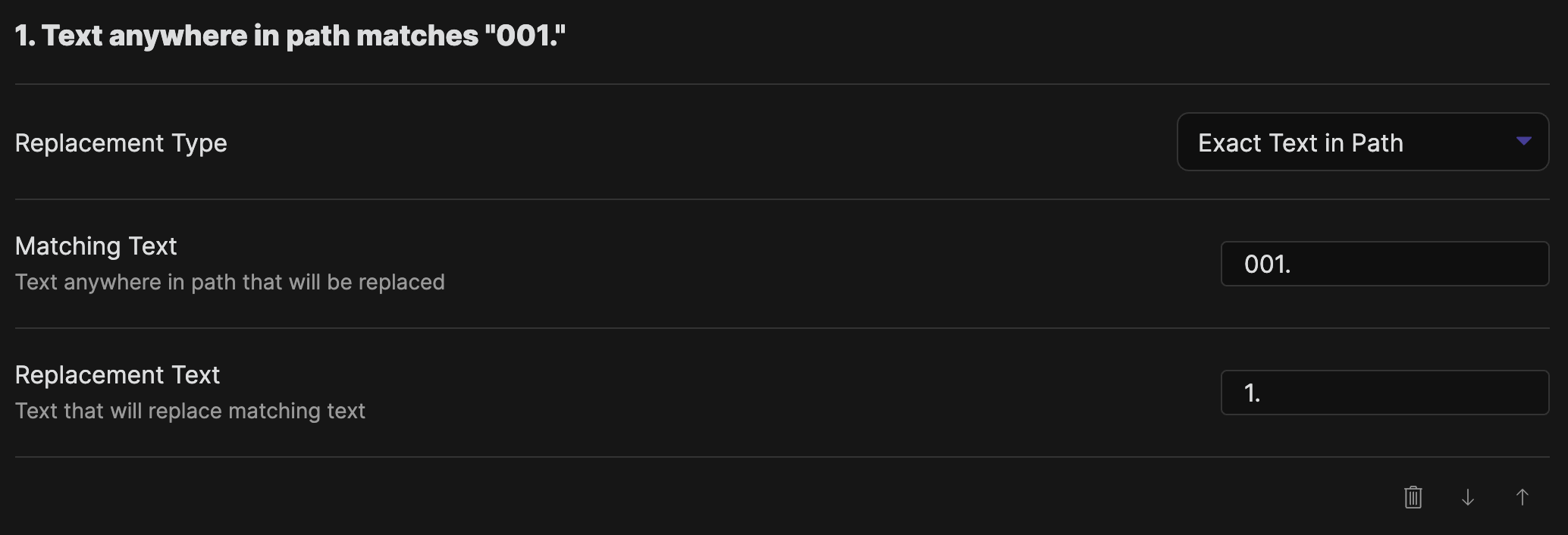
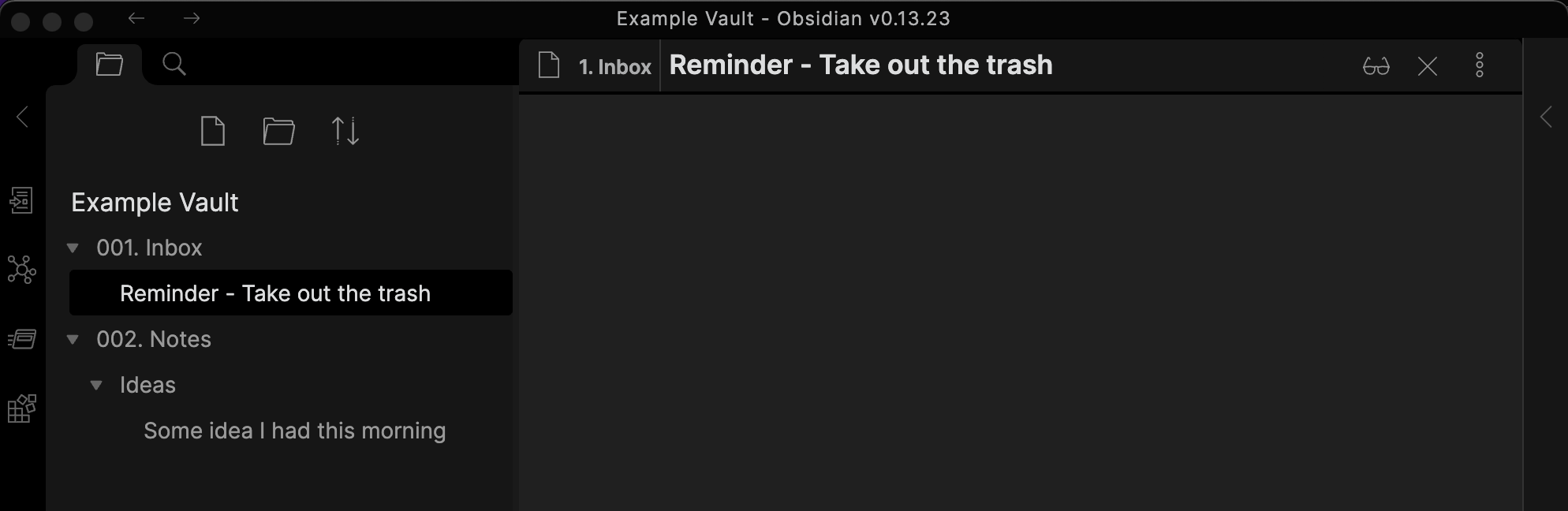
You can replace text anywhere in the path with alternate text. For example, here we replace "001." with "1.".
Regular Expression Replacement
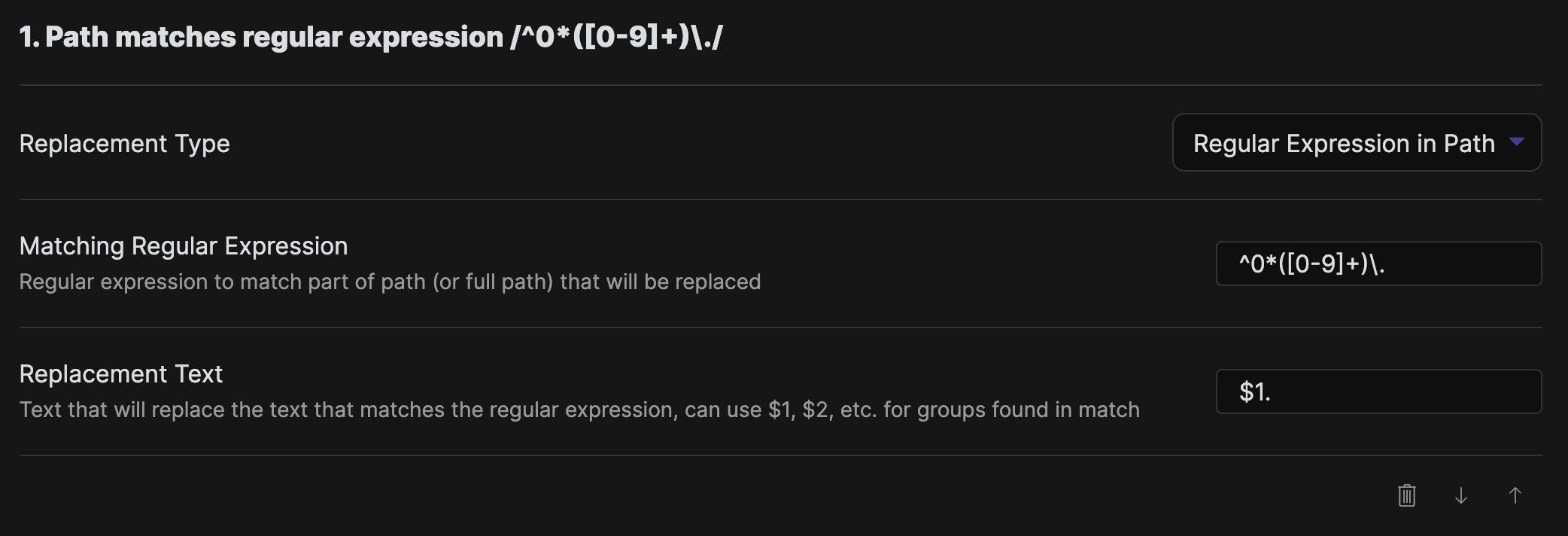
You can use a regular expression to match text anywhere in the path and replace it with alternate text, using $1, $2, etc. to insert groups matched by the regular expression. This allows you to change multiple paths with a single rule.