 cbbd709bb3
Explains the parse-IR-serialize round trip and why GUI-only state (e.g. node positions) never gets written to the file. Removes the now-redundant summary of the same point from "What it does". |
||
|---|---|---|
| .github/workflows | ||
| images | ||
| src | ||
| tests | ||
| .gitignore | ||
| .npmrc | ||
| esbuild.config.mjs | ||
| LICENSE | ||
| main.ts | ||
| manifest.json | ||
| package-lock.json | ||
| package.json | ||
| README.md | ||
| styles.src.css | ||
| tsconfig.json | ||
| version-bump.mjs | ||
| versions.json | ||
| vitest.config.ts | ||
Mermaid GUI Editor for Obsidian
Edit Mermaid diagrams — flowcharts, sequence diagrams, class diagrams, Gantt charts, kanban boards, and more — with a visual GUI editor, right inside your Obsidian notes. Everything is saved back as plain Mermaid text, so your notes stay portable and readable with any other Markdown/Mermaid tool.
What it does
This plugin adds an Edit button to every ```mermaid code block — in Reading view, in Live Preview, and in Source mode. Live Preview is where most people will use this day to day, since it's Obsidian's default editing view. Clicking it opens a modal with a diagram-specific GUI editor: some diagram types (flowchart, Gantt, kanban, quadrant, XY chart) get a fully interactive canvas you drag and drop directly; the rest (sequence, class, pie, and so on) get a structured form editor next to a live preview that updates as you type. Either way, no hand-written Mermaid syntax is required.
Demo
These clips show a sample of what's possible, not the full feature set — and since the plugin keeps evolving, actual behavior may have since diverged from what's shown here.
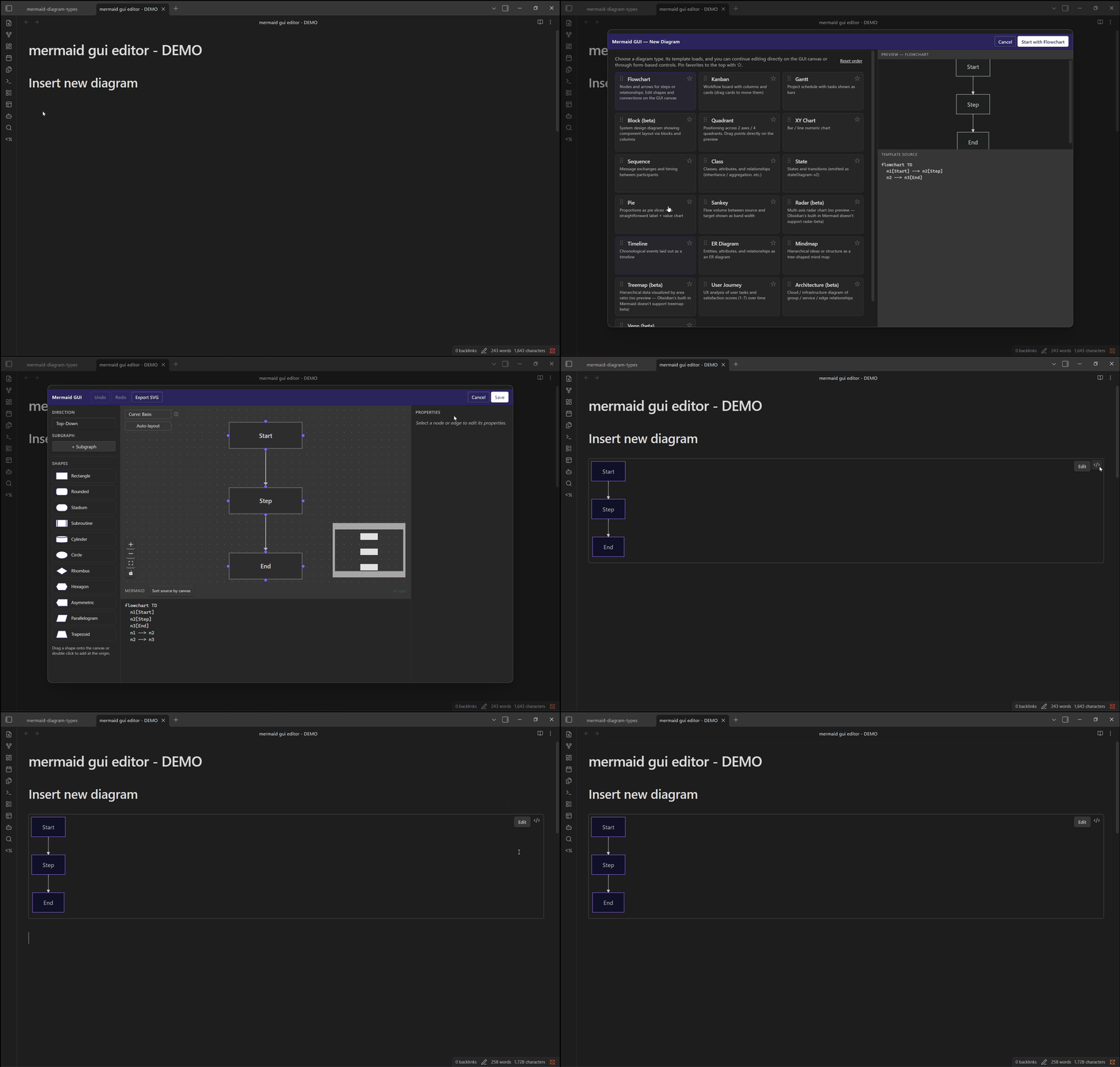
Insert a new diagram from the template picker
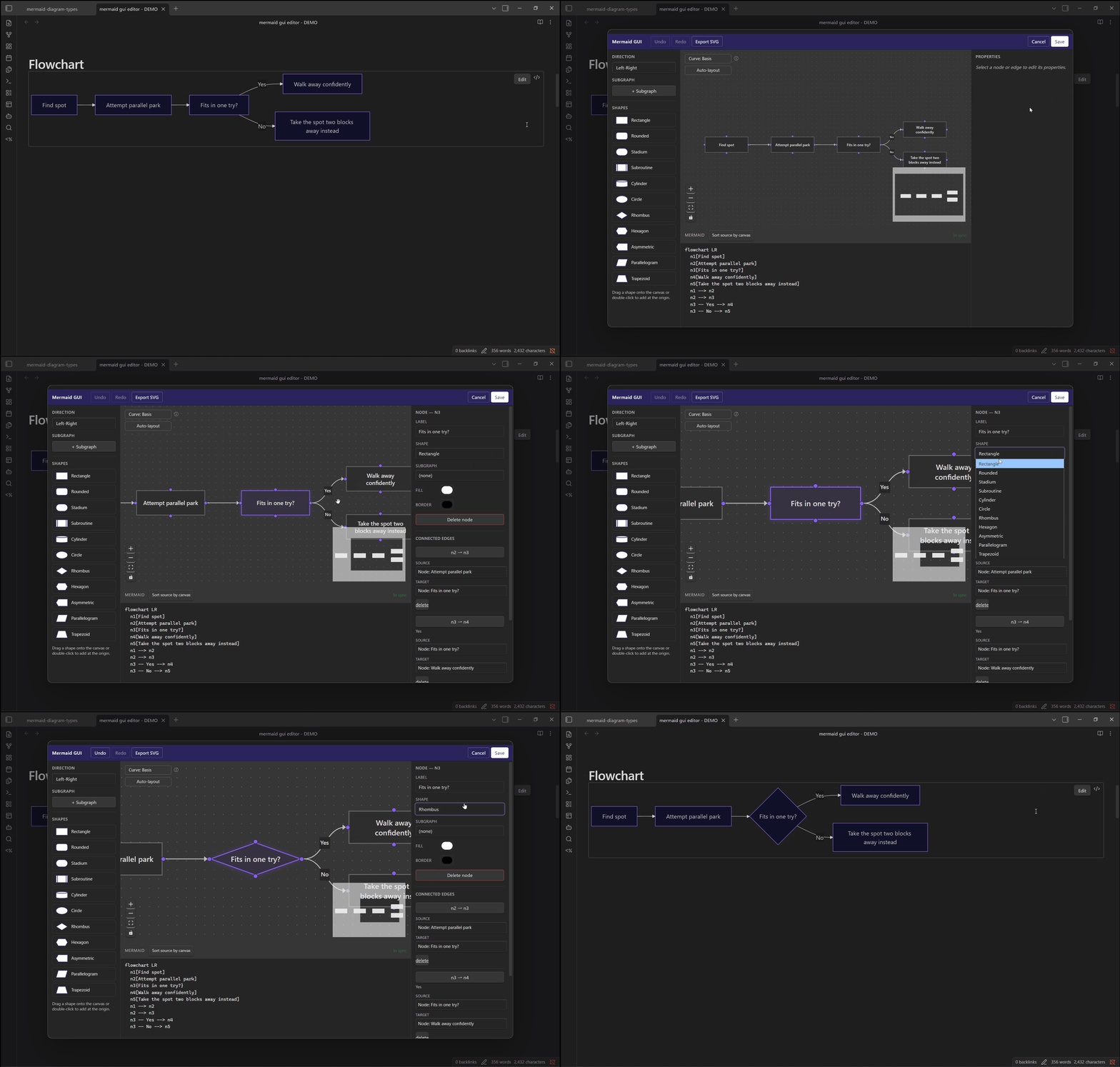
Flowchart: edit node shapes directly on the canvas
Flowchart: add a subgraph and change its direction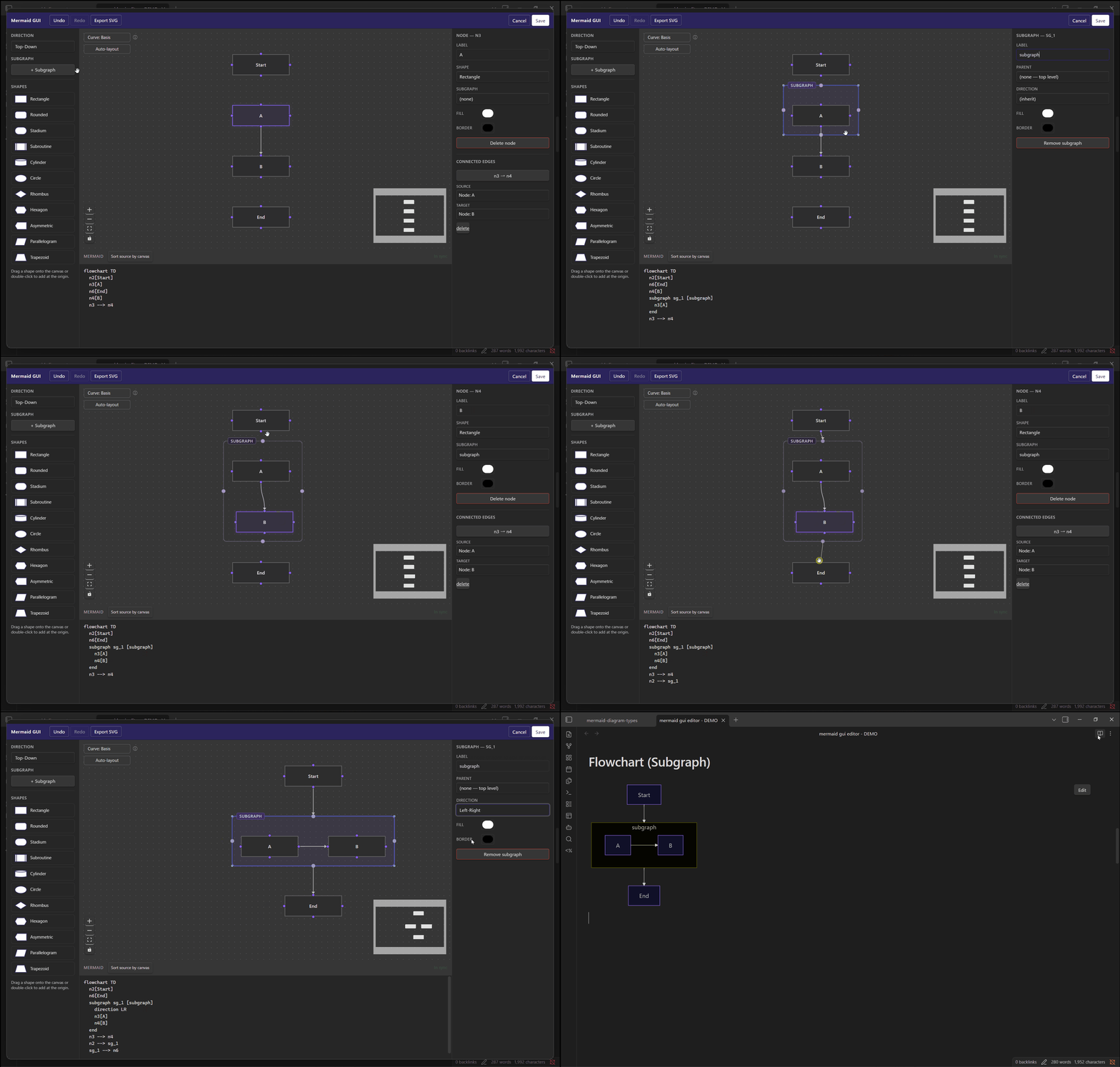
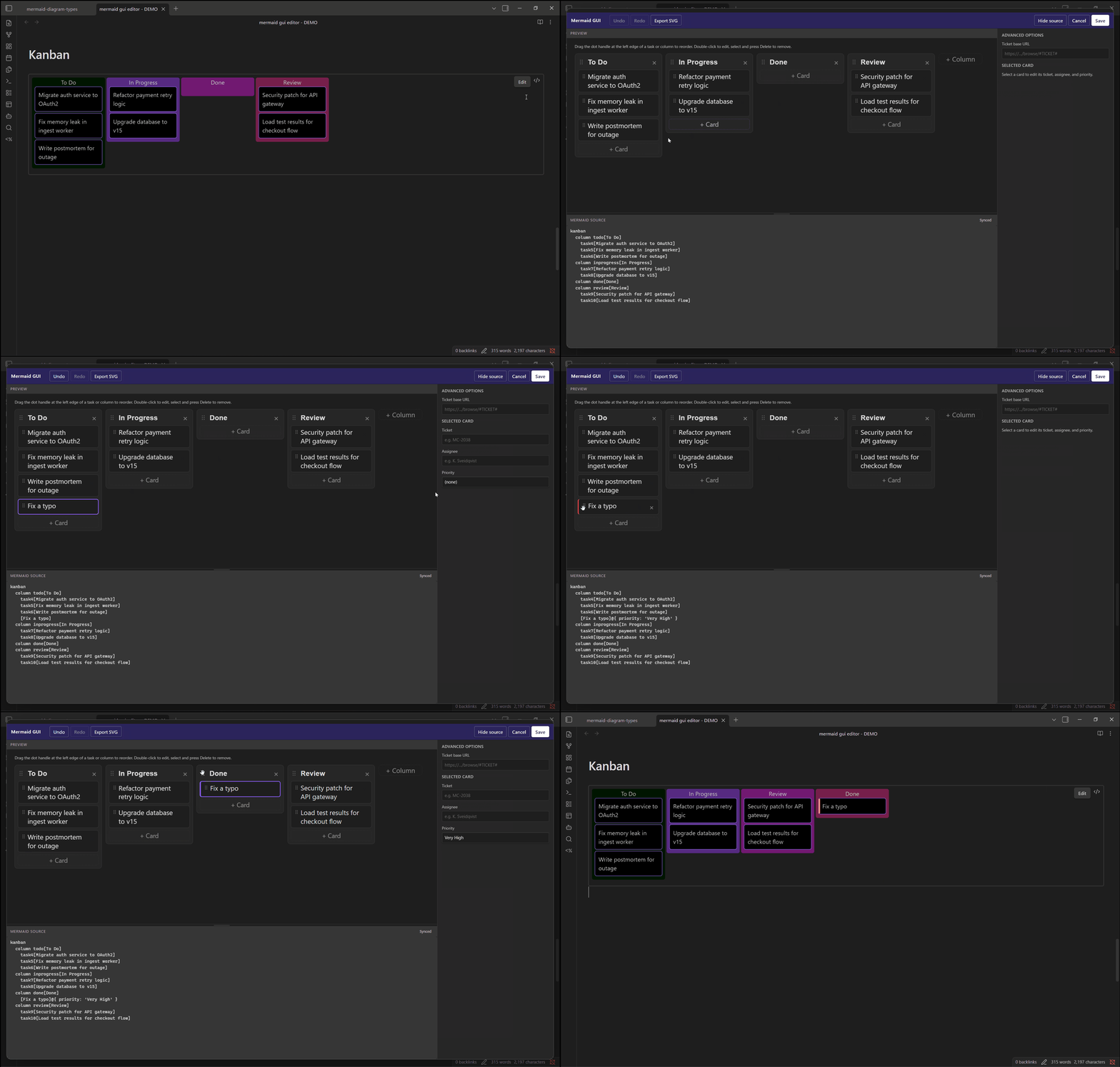
Kanban: drag-and-drop cards and columns
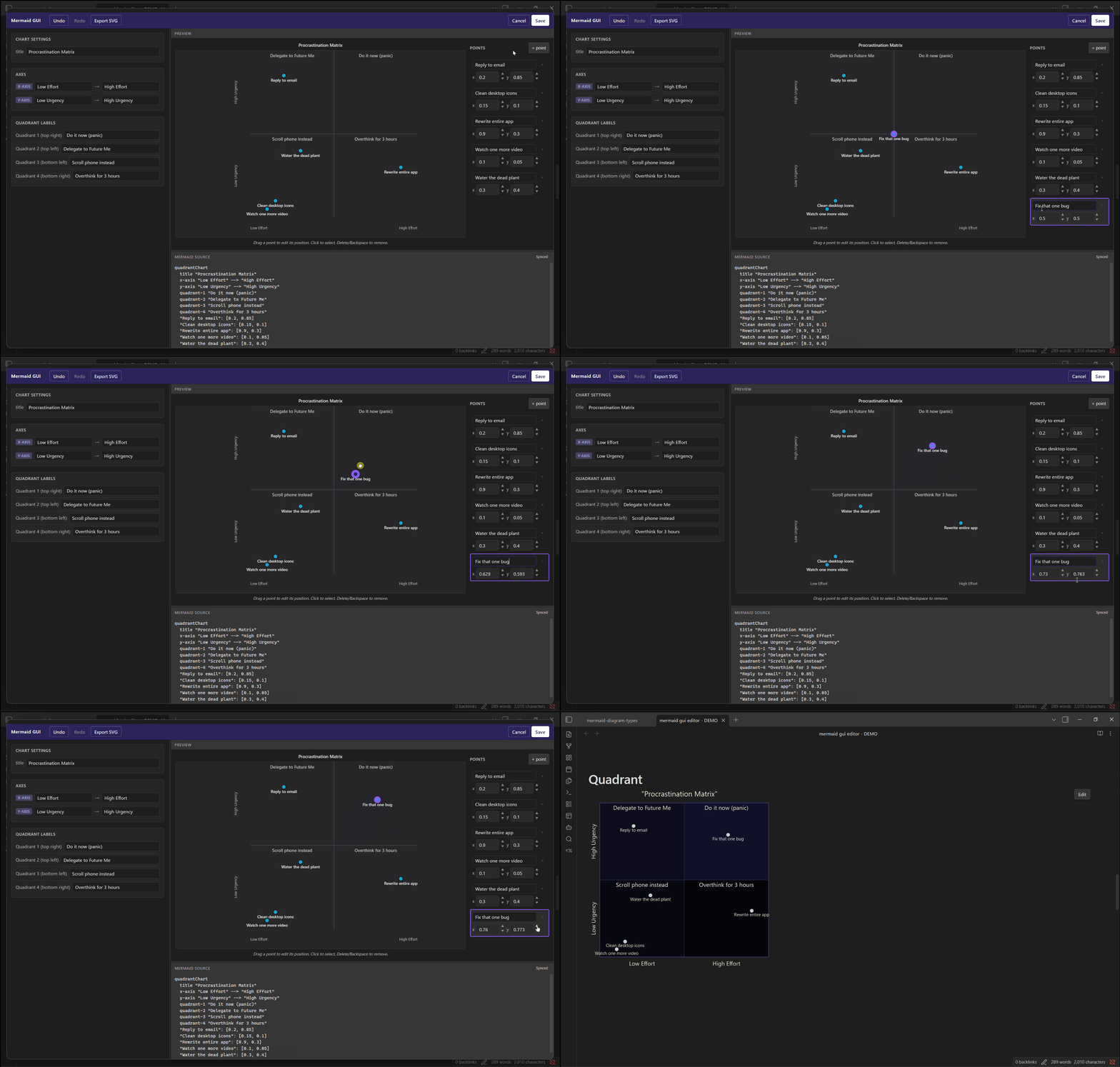
Quadrant chart: drag points, source stays in sync
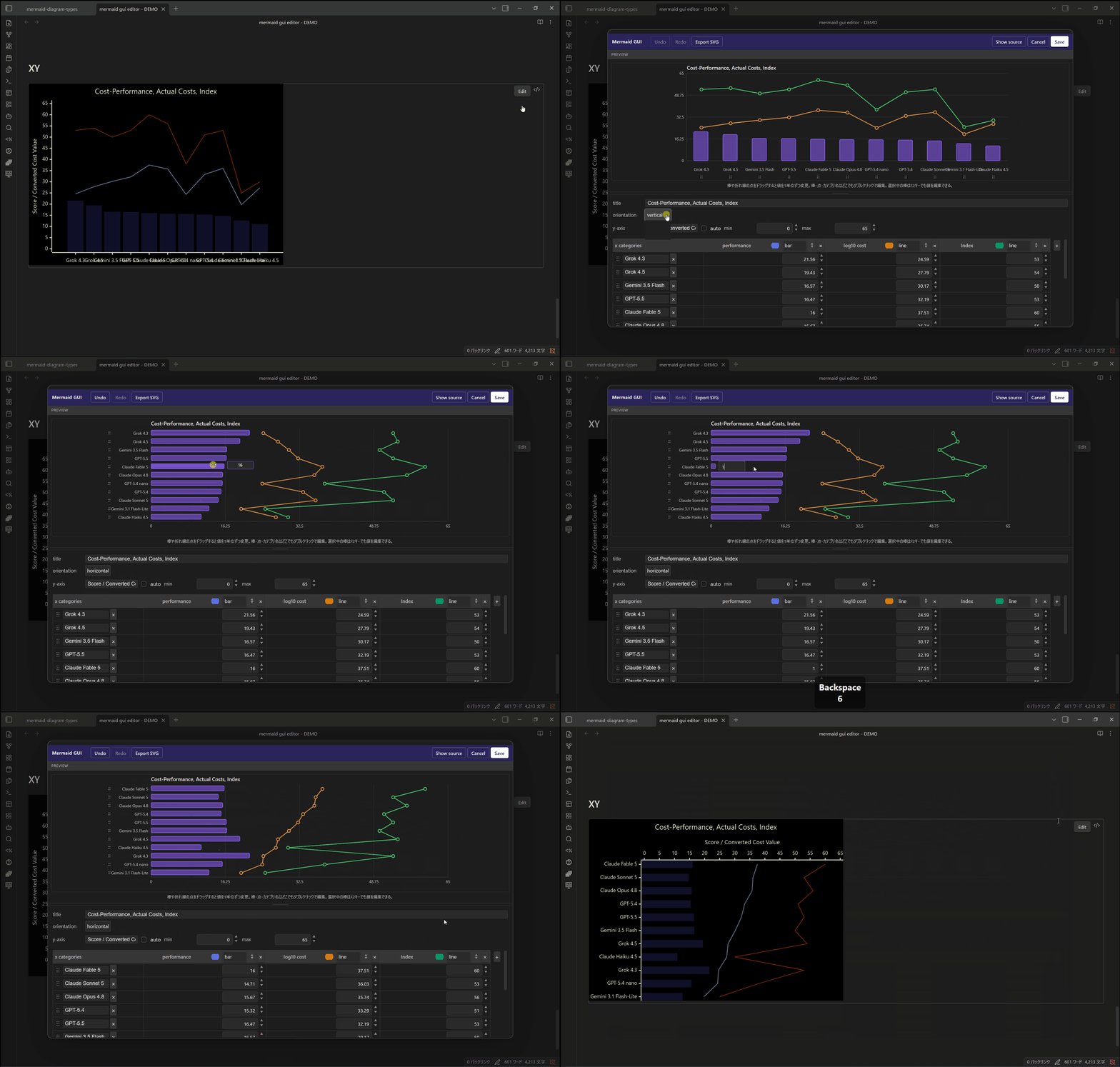
XY chart: bar + line series, editable inline
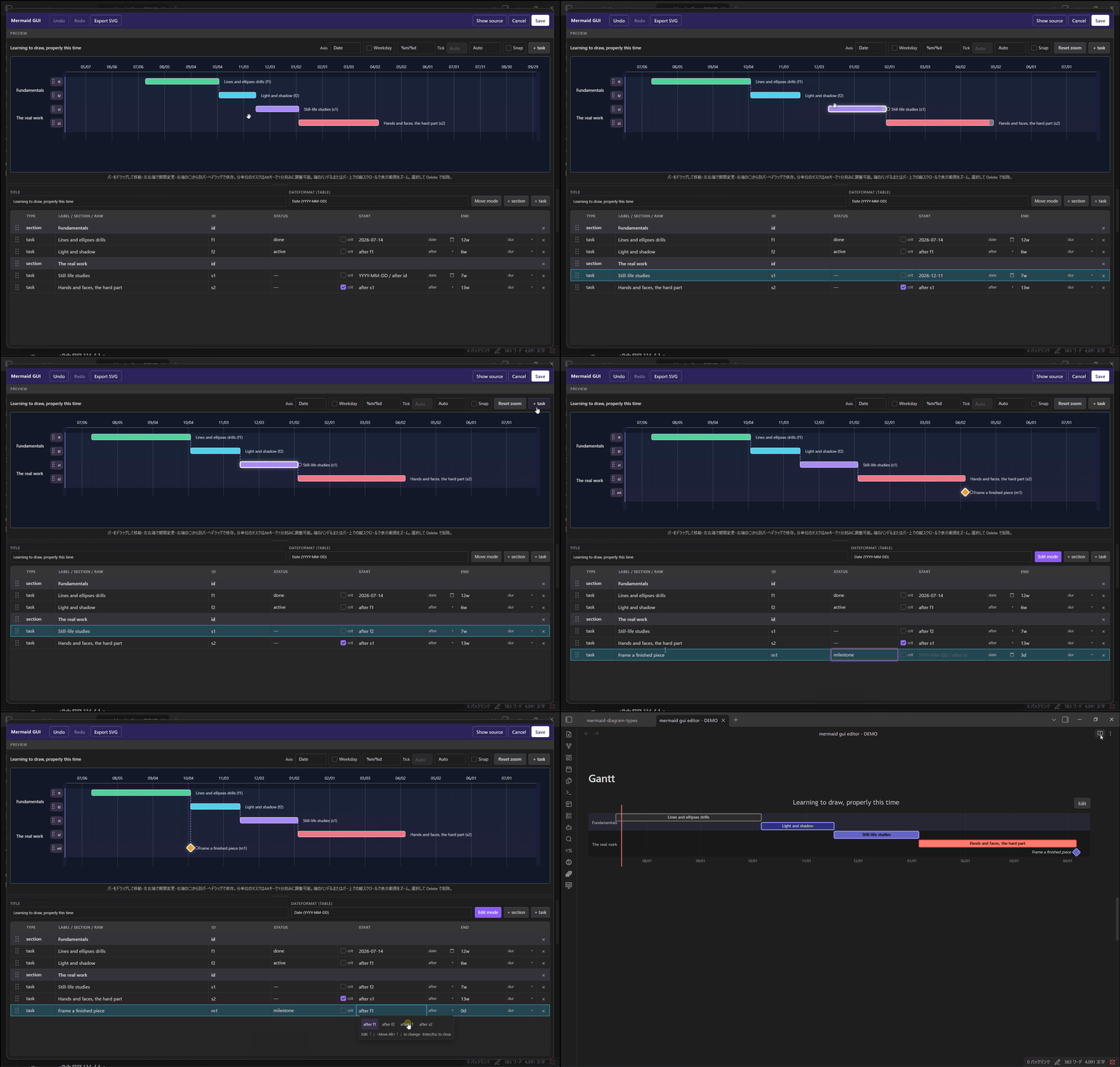
Gantt: manage task dependencies
How it works
Obsidian notes are meant to stay plain, portable Markdown, so editing shouldn't cost you that. The plugin parses the Mermaid source into an in-memory intermediate representation (IR) while you edit, then writes back only standard Mermaid syntax on save — GUI-only state like node positions is never part of what gets saved, so the file stays exactly what any other Mermaid tool expects.
sequenceDiagram
  participant File as Note File
  participant Core as Parser / Generator
  participant GUI as Visual Editor

  File->>Core: Read the Mermaid source
  Core->>GUI: Provide the parsed intermediate representation (IR)

  loop While the editor is open
    GUI->>GUI: Handle drag operations and update element positions
    Note right of GUI: Editor-specific state, such as node positions,<br>is kept only for the current session
    GUI->>Core: Apply changes to the IR
    Core->>GUI: Regenerate Mermaid source for the code pane
  end

  Core->>File: Serialize the IR back into standard Mermaid syntax
  Note over File: Editor-specific state is not persisted in the file
Features
-
Edit button on every mermaid block, in Reading view, Live Preview, and Source mode alike, plus a command-palette / right-click action to edit the block under your cursor
-
Insert new diagram — pick a diagram type from a template picker and start building with the GUI immediately (command palette or editor context menu)
-
Diagram-specific GUI editors: interactive canvas for flowcharts, draggable bars for Gantt, a full drag-and-drop board for kanban, direct point-dragging for quadrant/XY charts, and structured form editors with a live preview for the rest
-
Non-destructive round-trip — syntax the parser doesn't understand yet (
classDef,style,linkStyle,click, …) is preserved verbatim instead of being dropped -
Undo / Redo and SVG export, consistent across every editor
-
Follows your Obsidian theme (light/dark, and community themes) automatically
-
Unsupported diagram types still get a plain source-text editor as a fallback, so nothing is ever locked out of editing
Supported diagram types
| Diagram type | Keyword | GUI editor |
|---|---|---|
| Flowchart | flowchart / graph |
✅ Interactive canvas |
| Quadrant chart | quadrantChart |
✅ Interactive canvas |
| XY chart | xychart-beta |
✅ Interactive canvas |
| Gantt chart | gantt |
✅ Interactive canvas |
| Kanban board | kanban |
✅ Interactive canvas |
| Sequence diagram | sequenceDiagram |
✅ Form + live preview |
| Class diagram | classDiagram |
✅ Form + live preview |
| State diagram | stateDiagram-v2 / stateDiagram |
✅ Form + live preview |
| Pie chart | pie |
✅ Form + live preview |
| Sankey diagram | sankey-beta |
✅ Form + live preview |
| Timeline | timeline |
✅ Form + live preview |
| ER diagram | erDiagram |
✅ Form + live preview |
| Mindmap | mindmap |
✅ Form + live preview |
| User journey | journey |
✅ Form + live preview |
| Architecture diagram | architecture-beta |
✅ Form + live preview |
| Block diagram | block-beta |
✅ Form + live preview |
| Radar chart | radar-beta |
✅ Form, but no live preview (Obsidian's bundled Mermaid doesn't render it) |
| Treemap / Venn diagram | treemap-beta / venn-beta |
⚠️ Source-only (structured data, no visual canvas or form yet) |
| Anything else | — | ⚠️ Plain source-text editor |
How to use
Edit an existing diagram
- Open a note containing a
```mermaidblock — Reading view, Live Preview, and Source mode all work. - Click the Edit button that appears over the diagram (or its rendered position in Live Preview) — or, with your cursor inside the block, right-click and choose Edit, or run "Edit current Mermaid block" from the command palette.
- Make your changes in the GUI editor, then Save. Only that block is rewritten.
Create a new diagram
- Open the command palette and run "Insert new Mermaid diagram (GUI)", or right-click in the editor and pick the same action.
- Choose a diagram type from the template picker.
- Build it with the GUI, then Save to insert a new
```mermaidfence at your cursor.
Installation
Via Community Plugins
- In Obsidian, go to Settings → Community plugins, turn off Restricted Mode if needed, and select Browse.
- Search for Mermaid GUI Editor, select it, then Install and Enable.
Via BRAT
Useful if you want to track pre-release builds ahead of what's in the community directory.
- Install the BRAT community plugin from Obsidian's plugin browser.
- In BRAT's settings, choose Add Beta plugin and enter this repository's URL.
- BRAT installs the latest Release and checks for new ones periodically (or on demand via BRAT's Check for updates command).
Manually
- Clone this repository and run
npm install && npm run build(see Development) to producemain.jsandstyles.css. - Copy
main.js,styles.css, andmanifest.jsoninto<vault>/.obsidian/plugins/mermaid-gui-editor/. - In Obsidian, go to Settings → Community plugins, turn off Restricted Mode if needed, and enable Mermaid GUI Editor.
Privacy & safety
-
No network access. The plugin never sends any data anywhere — it only reads and writes the note you're editing, locally.
-
Scoped writes. Saving only rewrites the exact fence you opened; before writing, the plugin re-verifies the fence's start/end lines so a note edited elsewhere while the modal was open can't be corrupted.
-
No proprietary state in your files. Node positions and other GUI-only data exist only for the editing session and are never persisted to the note — what's saved is standard Mermaid text, nothing else.
Known limitations
-
Desktop only (
isDesktopOnly: true) — not available on Obsidian Mobile. -
radar-betahas a GUI editor, but Obsidian's bundled Mermaid doesn't render that diagram type, so no live preview is shown.treemap-betaandvenn-betaare source-only editors (no visual canvas) for the same underlying reason. -
Editing always opens a modal — there's no fully inline, in-place GUI woven directly into the Live Preview text yet (it would have to contend with CM6 for control of the editor, IME composition, and undo history).
-
Index-based
linkStyle Ndeclarations aren't tracked structurally, so reordering edges can shift which style applies to which edge. -
The flowchart Curve setting (
%%{init: {"flowchart": {"curve": "..."}}}%%) may not visibly affect rendering, depending on the Mermaid version bundled with your Obsidian install. This is a known, currently unresolved upstream Mermaid bug in the flowchart-v2/dagre-wrapper renderer (mermaid-js/mermaid#6193, fix in progress via PR #6408) — the Mermaid saved by this plugin is correct either way, and the setting will take visible effect once Obsidian ships a Mermaid version with the upstream fix. -
The Gantt editor's preview axis may show slightly different tick dates than the diagram's actual rendered output (e.g. in Reading view), if your system isn't set to UTC. This plugin computes all dates/ticks in UTC, while Mermaid's own renderer parses dates and lays out axis ticks in your local timezone — the saved Mermaid source is unaffected either way, only the two axes' gridline positions can diverge slightly.
Development
npm install
npm run dev        # esbuild watch — reload Obsidian after main.js/styles.css rebuild
npm run build       # typecheck + production bundle
npm run typecheck
npm run test
npm run test:watch
For local testing, symlink the repo into your vault's plugins folder instead of copying files on every change:
# Windows (PowerShell, run as Administrator)
New-Item -ItemType Junction `
  -Path "<vault>\.obsidian\plugins\mermaid-gui-editor" `
  -Target "<repo>\."
Run npm run dev in the repo and reload Obsidian (Ctrl/Cmd+R) to pick up changes.
Credits
The flowchart editor's architecture — React Flow for the node/edge canvas, Zustand for state, Dagre for auto-layout — follows the approach used by Mermaid Visual Editor. This plugin wouldn't have come together nearly as fast without that reference.