| .github/workflows | ||
| docs | ||
| src | ||
| .editorconfig | ||
| .gitattributes | ||
| .gitignore | ||
| .npmrc | ||
| esbuild.config.mjs | ||
| eslint.config.mts | ||
| LICENSE | ||
| manifest.json | ||
| package-lock.json | ||
| package.json | ||
| README.md | ||
| styles.css | ||
| tsconfig.json | ||
| version-bump.mjs | ||
| versions.json | ||
| vitest.config.ts | ||

Code Playground
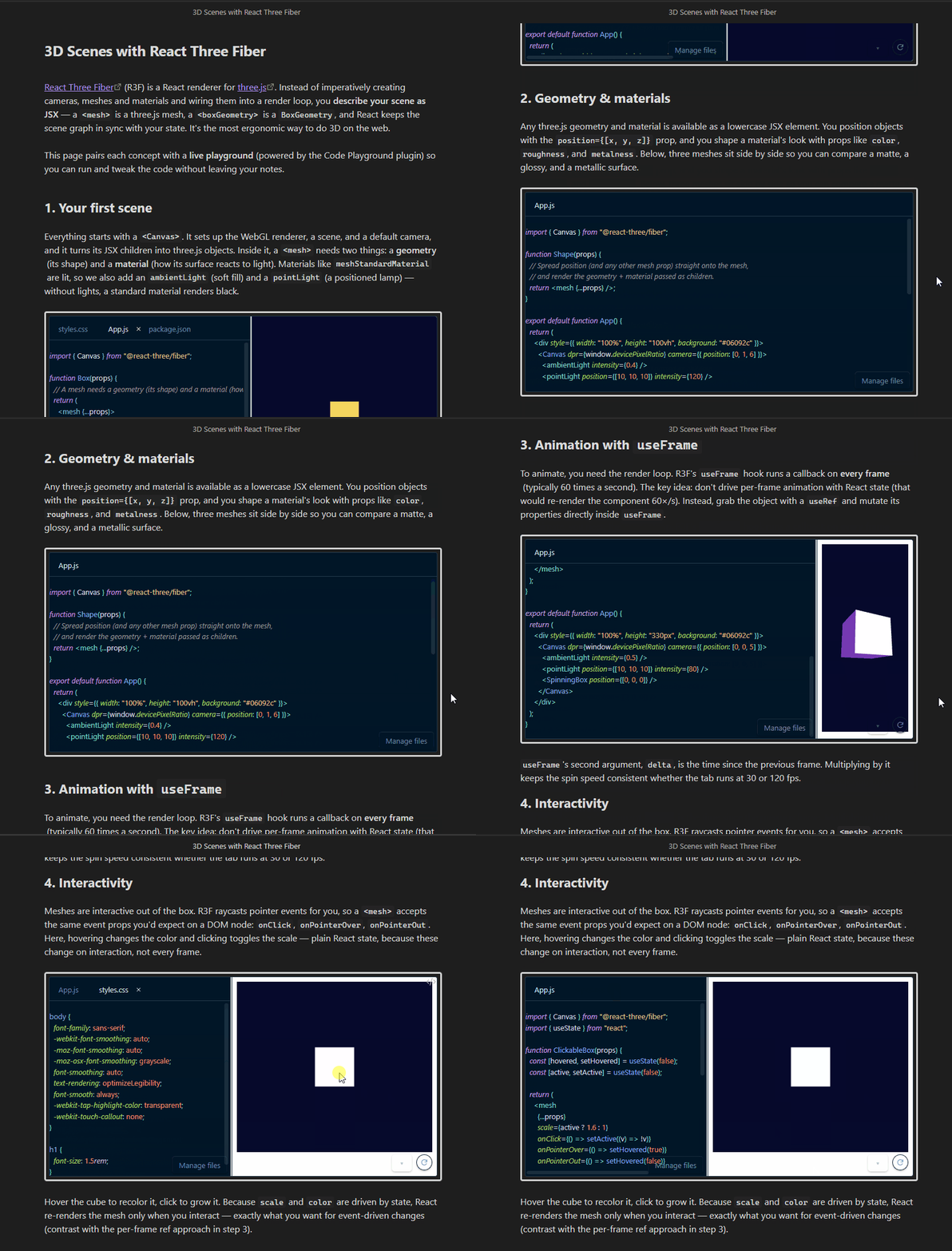
Embed live, editable Sandpack code playgrounds inside your Obsidian notes. Write a fenced block, get a working React (or Vue, Vanilla, Svelte, Angular…) sandbox that runs in-place.
⚠️ Network use & privacy — please read
This plugin relies on Sandpack, which uses CodeSandbox's hosted services. Before you use it, understand what leaves your machine:
- Your playground code is sent to a third party to compile. To build a live preview, Sandpack sends the code you type in a playground to CodeSandbox's hosted bundler service (
*.codesandbox.io), which runs in an iframe. npm packages you import are resolved from CodeSandbox's registry / CDN. - The bundler endpoint is configurable. If you'd rather not send code to CodeSandbox, set a Self-hosted bundler URL in the settings tab to point Sandpack at a self-hosted bundler you control. When set, playground code and dependency resolution go to that endpoint instead of
*.codesandbox.io. - A working internet connection is required to render previews. There is no fully offline mode today.
- The "Open in CodeSandbox" button uploads your code. When
showOpenInCodeSandboxis enabled and you click it, the block's code is exported to codesandbox.io to open it there. This button is off by default. - Mobile (iOS / Android) is supported but experimental — see Platform support.
If any of your playground content is sensitive, do not put it in a block, because compiling it will transmit it to CodeSandbox. See Sandpack's docs and CodeSandbox's privacy policy for details on their handling of submitted code.
Features
- Live, in-note code editor + preview powered by Sandpack.
- Supports every Sandpack template (
react,vanilla,vue,angular,svelte, …). - Per-block JSON overrides for template, theme, panel visibility, sizing, colors.
- Edits persist to per-block JSON sidecar files in your vault — they sync wherever the vault syncs.
- Settings tab to set defaults once for every block in your vault.
- Optional console panel and "Open in CodeSandbox" export button.
Installation
From the community catalog
- Open Settings → Community plugins → Browse.
- Search for Code Playground.
- Install, then enable.
Manual install
- Download
main.js,manifest.json, andstyles.cssfrom the latest release. - Copy them into
<your-vault>/.obsidian/plugins/code-playground/. - In Obsidian, open Settings → Community plugins and enable Code Playground.
Your first playground
Write this into any note:
```code-playground
```
That's the minimum. As you type, the plugin automatically assigns each empty block a stable id (shortly after you create it) so its edits can be persisted. From then on, edits inside the playground are saved to a sidecar file (see Storage).
If you paste or write a block that already has some JSON but no id, the automatic scan leaves it alone — run the Assign missing block identifiers command to fill those in.
The legacy
codePlayground(camelCase) fence is still recognized, so existing notes keep working. New blocks usecode-playground.
Configuration reference
The block body is JSON. Both id and template are required — a block missing either one renders an inline error view instead of running. Every other field is optional and falls back to the plugin-wide default from the settings tab. You rarely write id by hand: an empty block gets one injected automatically as you type (see Your first playground).
| Field | Type | Default (from settings) | Notes |
|---|---|---|---|
id |
string | auto-generated UUID | Stable identifier used to look up the sidecar. Don't change after creation. |
template |
Sandpack template name | "react" |
Any key from Sandpack's SANDBOX_TEMPLATES. |
theme |
string | "auto" |
"light", "dark", "auto", or any named theme from @codesandbox/sandpack-themes. |
borderColor |
hex color (e.g. "#D3D3D3") |
"#D3D3D3" |
Border around the playground container. |
maxEditorHeight |
positive number (px) | 400 |
Maximum height of the editor panel. |
minEditorHeight |
positive number (px) | 100 |
Minimum height of the editor panel. Must be ≤ maxEditorHeight. |
showEditor |
boolean | true |
Show the code editor pane. |
showPreview |
boolean | true |
Show the live preview pane. |
showConsole |
boolean | false |
Show the console pane below. |
showFileTabs |
boolean | true |
Show file tabs in the editor. |
buttonBackgroundColor |
hex color or omitted | (theme default) | Overrides button background. Omit to inherit from the Sandpack theme. |
buttonTextColor |
hex color or omitted | (theme default) | Overrides button text color. Omit to inherit from the Sandpack theme. |
showOpenInCodeSandbox |
boolean | false |
Show the "Open in CodeSandbox" export button. |
Validation rules (an invalid block renders an inline error view instead of running):
- At least one of
showEditor,showPreview,showConsolemust betrue. minEditorHeightmust be ≤maxEditorHeight.- Hex colors must match
#RGBor#RRGGBB(case-insensitive). - Heights must be positive numbers.
Per-block overrides
Any field above can be overridden on a single block without touching the plugin settings. Example — a dark-themed React playground with the console enabled and a custom border:
```code-playground
{
  "id": "myID",
  "template": "react",
  "theme": "dark",
  "borderColor": "#444",
  "showConsole": true
}
```
Plugin defaults apply to every field you don't specify.
Supported templates and themes
Templates are whatever Sandpack ships in SANDBOX_TEMPLATES. Common ones include react, react-ts, vanilla, vanilla-ts, vue, angular, svelte, solid, nextjs, static. See the Sandpack docs for the canonical list.
Themes can be:
"light","dark","auto"(built-in strings), or- the name of any theme exported by
@codesandbox/sandpack-themes— e.g."amethyst","aquaBlue","githubLight","monokaiPro","nightOwl".
The settings tab dropdown lists every value the current bundle supports.
Settings
Open Settings → Code Playground to set vault-wide defaults:
- Default template — the Sandpack template used when a block doesn't set one.
- Default border color — hex color for the container border.
- Default max / min editor height — pixel bounds for the editor panel.
- Default theme — Sandpack theme name.
- Show editor / preview / console / file tabs — default panel visibility.
- Button background / text color — leave empty to use the Sandpack theme's defaults; set a hex value to override.
- Show 'Open in CodeSandbox' button — adds an export button to every block.
- Playground sidecar folder — vault-relative folder where per-block state is stored (default
_playgrounds). Changing this only affects new writes; existing sidecars in the old folder stay where they are. - Self-hosted bundler URL — advanced. Point Sandpack at your own bundler instead of CodeSandbox's hosted service, so playground code and dependency resolution go to an endpoint you control. Leave empty to use the default. See Network use & privacy.
Commands
Run these from Obsidian's Command palette (Ctrl/Cmd + P), where they appear prefixed with the plugin name, e.g. Code Playground: Insert block. You can also assign a hotkey to any of them in Settings → Hotkeys (search for "Code Playground").
- Assign missing block identifiers — scans the active note and writes a fresh UUID into every
code-playgroundblock that doesn't already have anid, including blocks that already contain JSON. The automatic scan (debounced, while you type) only seeds empty blocks, so run this command whenever a block with existing JSON needs an id. Requires an open note in editing mode. - Insert block — inserts a ready-to-edit
code-playgroundblock at the cursor, pre-seeded with a freshidand your default template. Requires an open note in editing mode. - Remove unused sidecar files — scans every Markdown and Canvas file in the vault for
code-playgroundblock ids, then deletes any sidecar in the playground folder whose id no longer appears anywhere. Shows a confirmation listing the exact files first; deletion follows your Deleted files preference (system trash / vault trash / permanent), so removed sidecars stay recoverable. Available anywhere (no note required).
Storage
Each block's edits live in their own JSON file inside the vault:
<vault>/<playgroundFolder>/<block-id>.json
The folder defaults to _playgrounds/. The sidecar schema (only version and files are always present; the rest are written as needed):
{
  "version": 1,
  "files": { "/App.js": "…", "/index.js": "…" },
  "activeFile": "/App.js",
  "editorWidth": 480,
  "hiddenFiles": ["/index.js"]
}
Because the sidecars live in the vault, they sync wherever your vault syncs (Obsidian Sync, iCloud, Dropbox, Git, …). No localStorage, no extra config.
Heads up: deleting a
code-playgroundblock from a note does not delete its sidecar immediately. To reclaim space, run the Remove unused sidecar files command — it deletes according to your Deleted files setting, so the files stay recoverable.
Platform support
- Desktop (Windows / macOS / Linux): tested and supported.
- Mobile (iOS / Android): supported, but experimental. The plugin runs on Obsidian mobile (
isDesktopOnly: false), but mobile is not yet thoroughly tested. Because Sandpack runs code in an iframe and pulls its bundler from a CDN, previews depend on the mobile webview and a working connection, and some templates may load slowly or unreliably. If you hit a mobile-specific issue, please open one on the repo.
Known limitations
- Sandpack downloads its bundler from a CDN on first run, so a working internet connection is needed for new blocks. Once cached, the same template usually loads offline.
- Sidecar cleanup is manual: run Remove unused sidecar files after deleting blocks (see Storage). Notes in Obsidian's
.trashand other non-indexed locations are not scanned, so if you restore such a note you may need to restore its sidecar from the trash too.
Building from source
npm install
npm run build
Drop the built main.js, manifest.json, and styles.css into <vault>/.obsidian/plugins/code-playground/ to test against a real vault.
License
MIT — see LICENSE.