
15 KiB
While the guidelines on this page are recommendations, depending on their severity, we may still require you to address any violations.
Policies for plugin developers
Make sure that you've read our Developer policies as well as the Submission requirements for plugins.
General
Avoid using global app instance
Avoid using the global app object, app (or window.app). Instead, use the reference provided by your plugin instance, this.app.
The global app object is intended for debugging purposes and might be removed in the future.
Avoid unnecessary logging to console
Please avoid unnecessary logging.
In it's default configuration, the developer console should only show error messages, debug messages should not be shown.
Consider organizing your code base using folders
If your plugin uses more than one .ts file, consider organizing them into folders to make it easier to review and maintain.
Rename placeholder class names
The sample plugin contains placeholder names for common classes, such as MyPlugin, MyPluginSettings, and SampleSettingTab. Rename these to reflect the name of your plugin.
Mobile
Node and Electron APIs
The Node.js API, and the Electron API aren't available on mobile devices. Any calls to these libraries made by your plugin or it's dependencies can cause your plugin to crash.
Lookbehind in regular expressions
Lookbehind in regular expressions is only supported on iOS 16.4 and above, and some iPhone and iPad users may still use earlier versions. To implement a fallback for iOS users, either refer to Platform-specific features, or use a JavaScript library to detect specific browser versions.
Refer to Can I Use for more information and exact version statistics. Look for "Safari on iOS".
UI text
This section lists guidelines for formatting text in the user interface, such as settings, commands, and buttons.
The example below from Settings → Appearance demonstrates the guidelines for text in the user interface.
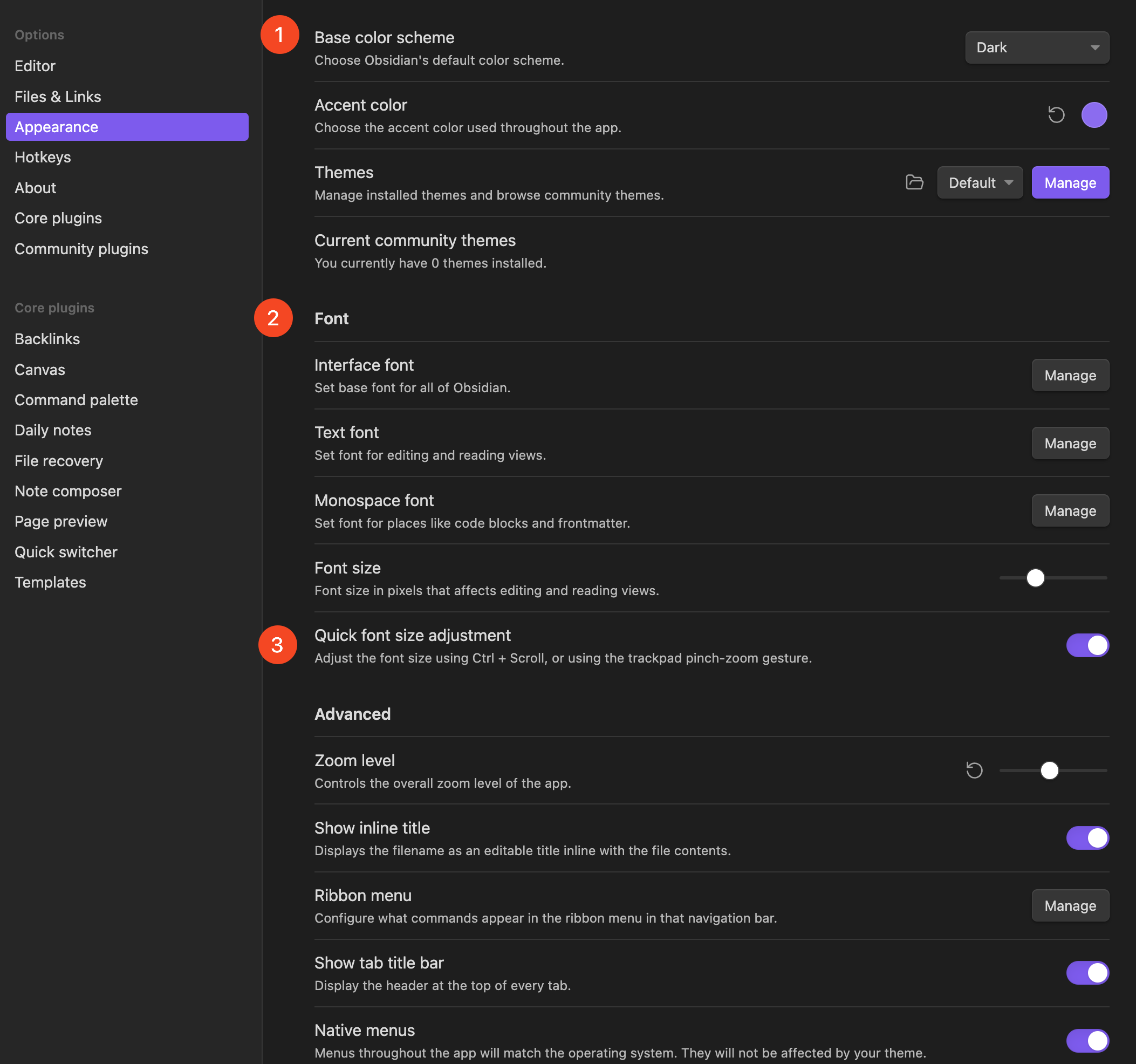
- General settings are at the top and don't have a heading.
- Section headings don't have "settings" in the heading text.
- Use Sentence case in UI.
For more information on writing and formatting text for Obsidian, refer to our Style guide.
Only use headings under settings if you have more than one section.
Avoid adding a top-level heading in the settings tab, such as "General", "Settings", or the name of your plugin.
If you have more than one section under settings, and one contains general settings, keep them at the top without adding a heading.
For example, look at the settings under Settings → Appearance.
Avoid "settings" in settings headings
In the settings tab, you can add headings to organize settings. Avoid including the word "settings" to these headings. Since everything in under the settings tab is settings, repeating it for every heading becomes redundant.
- Prefer "Advanced" over "Advanced settings".
- Prefer "Templates" over "Settings for templates".
Use sentence case in UI
Any text in UI elements should be using Sentence case instead of Title Case, where only the first word in a sentence, and proper nouns, should be capitalized.
- Prefer "Template folder location" over "Template Folder Location".
- Prefer "Create new note" over "Create New Note".
Use setHeading instead of a
,
Using the heading elements from HTML will result in inconsistent styling between different plugins.
Instead you should prefer the following:
new Setting(containerEl).setName('your heading title').setHeading();
Security
Avoid innerHTML, outerHTML and insertAdjacentHTML
Building DOM elements from user-defined input, using innerHTML, outerHTML and insertAdjacentHTML can pose a security risk.
The following example builds a DOM element using a string that contains user input, ${name}. name can contain other DOM elements, such as <script>alert()</script>, and can allow a potential attacker to execute arbitrary code on the user's computer.
function showName(name: string) {
  let containerElement = document.querySelector('.my-container');
  // DON'T DO THIS
  containerElement.innerHTML = \`<div class="my-class"><b>Your name is: </b>${name}</div>\`;
}
Instead, use the DOM API or the Obsidian helper functions, such as createEl(), createDiv() and createSpan() to build the DOM element programmatically. For more information, refer to HTML elements.
To cleanup a HTML elements contents use el.empty();
Resource management
Clean up resources when plugin unloads
Any resources created by the plugin, such as event listeners, must be destroyed or released when the plugin unloads.
export default class MyPlugin extends Plugin {
  onload() {
    this.registerEvent(this.app.vault.on('create', this.onCreate));
  }

  onCreate: (file: TAbstractFile) => {
    // ...
  }
}
Note
You don't need to clean up resources that are guaranteed to be removed when your plugin unloads. For example, if you register a mouseenter listener on a DOM element, the event listener will be garbage-collected when the element goes out of scope.
Don't detach leaves in onunload
When the user updates your plugin, any open leaves will be reinitialized at their original position, regardless of where the user had moved them.
Commands
Avoid setting a default hotkey for commands
Setting a default hotkey may lead to conflicts between plugins and may override hotkeys that the user has already configured.
It's also difficult to choose a default hotkey that is available on all operating systems.
Use the appropriate callback type for commands
When you add a command in your plugin, use the appropriate callback type.
- Use
callbackif the command runs unconditionally. - Use
checkCallbackif the command only runs under certain conditions.
If the command requires an open and active Markdown editor, use editorCallback, or the corresponding editorCheckCallback.
Workspace
Avoid accessing workspace.activeLeaf directly
If you want to access the active view, use getActiveViewOfType() instead:
const view = this.app.workspace.getActiveViewOfType(MarkdownView);

// getActiveViewOfType will return null if the active view is null, or if it's not a MarkdownView.
if (view) {
  // ...
}
If you want to access the editor in the active note, use activeEditor instead:
const editor = this.app.workspace.activeEditor?.editor;

if (editor) {
    // ...
}
Avoid managing references to custom views
Managing references to custom view can cause memory leaks or unintended consequences.
Don't do this:
this.registerView(MY_VIEW_TYPE, () => this.view = new MyCustomView());
Do this instead:
this.registerView(MY_VIEW_TYPE, () => new MyCustomView());
To access the view from your plugin, use Workspace.getActiveLeavesOfType():
for (let leaf of app.workspace.getActiveLeavesOfType(MY_VIEW_TYPE)) {
  let view = leaf.view;
  if (view instanceof MyCustomView) {
    // ...
  }
}
Vault
Prefer the Editor API instead of Vault.modify to the active file
If you want to edit an active note, use the Editor interface instead of Vault.modify().
Editor maintains information about the active note, such as cursor position, selection, and folded content. When you use Vault.modify() to edit the note, all that information is lost, which leads to a poor experience for the user.
Editor is also more efficient when making small changes to parts of the note.
Prefer Vault.process instead of Vault.modify to modify a file in the background
If you want to edit a note that is not currently opened, use the Vault.process function instead of Vault.modify.
The process function modifies the file atomically, which means that your plugin won't run into conflicts with other plugins modifying the same file.
Prefer FileManager.processFrontMatter to modify frontmatter of a note
Instead of extracting the frontmatter of a note, parsing and modifying the YAML manually you should use the FileManager.processFrontMatter function.
processFrontMatter runs atomically, so modifying the file will not conflict with other plugins editing the same file.
It will also ensure a consistent layout of the YAML produced.
Prefer the Vault API over the Adapter API
Obsidian exposes two APIs for file operations: the Vault API (app.vault) and the Adapter API (app.vault.adapter).
While the file operations in the Adapter API are often more familiar to many developers, the Vault API has two main advantages over the adapter.
- Performance: The Vault API has a caching layer that can speed up file reads when the file is already known to Obsidian.
- Safety: The Vault API performs file operations serially to avoid any race conditions, for example when reading a file that is being written to at the same time.
Avoid iterating all files to find a file by its path
This is inefficient, especially for large vaults. Use Vault.getFileByPath, Vault.getFolderByPath or Vault.getAbstractFileByPath instead.
Don't do this:
this.app.vault.getFiles().find(file => file.path === filePath);
Do this instead:
const filePath = 'folder/file.md';
// if you want to get a file
const file = this.app.vault.getFileByPath(filePath);
const folderPath = 'folder';
// or if you want to get a folder
const folder = this.app.vault.getFolderByPath(folderPath);
If you aren't sure if the path provided is for a folder or a file, use:
const abstractFile = this.app.vault.getAbstractFileByPath(filePath);

if (file instanceof TFile) {
    // it's a file
}
if (file instanceof TFolder) {
    // it's a folder
}
Use normalizePath() to clean up user-defined paths
Use normalizePath() whenever you accept user-defined paths to files or folders in the vault, or when you construct your own paths in the plugin code.
normalizePath() takes a path and scrubs it to be safe for the file system and for cross-platform use. This function:
- Cleans up the use of forward and backward slashes, such as replacing 1 or more of
\or/with a single/. - Removes leading and trailing forward and backward slashes.
- Replaces any non-breaking spaces,
\u00A0, with a regular space. - Runs the path through String.prototype.normalize.
import { normalizePath } from 'obsidian';
const pathToPlugin = normalizePath('//my-folder\file');
// pathToPlugin contains "my-folder/file" not "//my-folder\"
Editor
Change or reconfigure editor extensions
class MyPlugin extends Plugin {
  private editorExtension: Extension[] = [];

  onload() {
    //...

    this.registerEditorExtension(this.editorExtension);
  }

  updateEditorExtension() {
    // Empty the array while keeping the same reference
    // (Don't create a new array here)
    this.editorExtension.length = 0;

    // Create new editor extension
    let myNewExtension = this.createEditorExtension();
    // Add it to the array
    this.editorExtension.push(myNewExtension);

    // Flush the changes to all editors
    this.app.workspace.updateOptions();
  }
}
Styling
No hardcoded styling
Don't do this:
const el = containerEl.createDiv();
el.style.color = 'white';
el.style.backgroundColor = 'red';
To make it easy for users to modify the styling of your plugin you should use CSS classes, as hardcoding the styling in the plugin code makes it impossible to modify with themes and snippets.
Do this instead:
const el = containerEl.createDiv({cls: 'warning-container'});
In the plugins CSS add the following:
.warning-container {
    color: var(--text-normal);
    background-color: var(--background-modifier-error);
}
To make the styling of your plugin consistent with Obsidian and other plugins you should use the CSS variables provided by Obsidian.
If there is no variable available that fits in your case, you can create your own.
TypeScript
Prefer const and let over var
For more information, refer to 4 Reasons Why var is Considered Obsolete in Modern JavaScript.
Prefer async/await over Promise
Recent versions of JavaScript and TypeScript support the async and await keywords to run code asynchronously, which allow for more readable code than using Promises.
Don't do this:
function test(): Promise<string | null> {
  return requestUrl('https://example.com')
    .then(res => res.text
    .catch(e => {
      console.log(e);
      return null;
    });
}
Do this instead:
async function AsyncTest(): Promise<string | null> {
  try {
    let res = await requestUrl('https://example.com');
    let text = await r.text;
    return text;
  }
  catch (e) {
    console.log(e);
    return null;
  }
}